A quotation is your price offer to a customer. It does not affect stock or accounting. Once the customer accepts it, you can turn it into a sales order or an invoice without retyping anything.
-
Step 1: Start a new quotation
Open Sales › Quotations and click New Quotation.
-
Step 2: Fill in the details
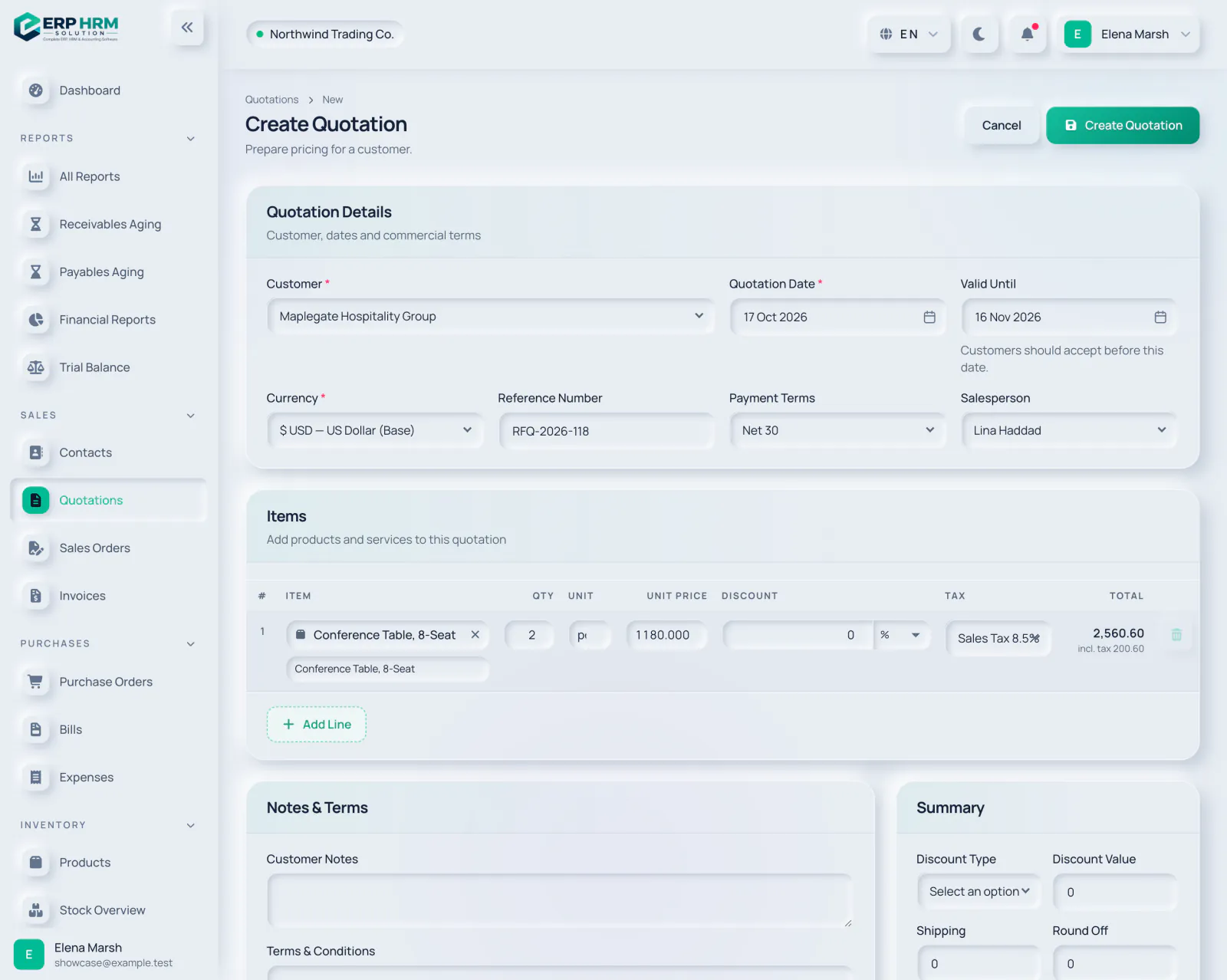
Choose the Customer (required). Quotation Date defaults to today and Valid Until to 30 days later; customers should accept before that date. Pick the Currency, and optionally a Reference Number (for example the customer’s RFQ number), Payment Terms and Salesperson.
- 1. Customer
- 2. Valid Until
-
Step 3: Add the items
In Items, search a product or service by name, SKU or barcode. Picking one fills in its description, unit, selling price and tax rate, which you can still change. Enter the Qty, an optional Discount (percentage or amount) and the Tax. Click Add Line for more lines.
- 1. Search product
- 2. Add Line
-
Step 4: Notes and totals
Add Customer Notes and Terms & Conditions for the customer, and Internal Notes for your team only. In Summary you can add a document discount, Shipping and Round Off. Totals on the form are a preview; final amounts are calculated when you save.
-
Step 5: Save
Click Create Quotation. It is saved as Draft with the next quotation number.
- 1. Create Quotation
Send it and record the answer
- Use Send by email to email the quotation as a PDF, or PDF to download it. Then click Mark as Sent. Marking as sent only changes the status; emailing does not change it.
- When the customer answers, click Accept or Reject. These buttons appear while the quotation is Sent (or Viewed).
- You can Edit a quotation while it is Draft or Sent. To withdraw it, use Cancel Quotation under Manage.
Quotation statuses are Draft, Sent, Viewed, Accepted, Converted, Rejected, Expired and Cancelled. A sent quotation that passes its Valid Until date is marked Expired automatically by the daily check.
Related guides
Ask about the product
Ask what the software can do, how a task works, or which countries and languages it supports. Answers come from these guides.
Thinking…
The AI assistant is not available right now. Search the guides or talk to our team. Contact support
AI can make mistakes. Check the linked guides.
Still need help?
Our support team reads every message and answers in plain language.
Contact support