On this page
Every payment goes through a bank or cash account. No bank or cash account exists in a new company, so create at least one before recording any payment.
Add a bank or cash account
-
Step 1: Open Bank & Cash
Go to Accounting → Bank & Cash and click New Account.
-
Step 2: Describe the account
Enter a Name (for example "Main current account"), pick the Type (Bank, Cash, Petty Cash or Wallet) and the Currency.
-
Step 3: Link the ledger account
Choose the Ledger Account it posts to: an asset account with subtype bank or cash, such as the ready-made 1010 Bank or 1000 Cash. The ledger account and currency are fixed once the account exists.
-
Step 4: Save
Optionally add Bank Name and the last digits of the account number, then click Save Account.
If you later change the opening balance or its date, the earlier opening journal is reversed on its own date and a new one is posted, so the ledger always matches the account.
- “Add an Opening Balance Equity account (3050) to post the opening balance.”: add an equity account with code 3050, or map Opening Balance Equity in Accounting › Account Mapping.
- “Set an exchange rate for … to post the opening balance.”: a foreign-currency opening balance is converted at the currency’s exchange rate, so set that rate first.
Pay or collect from the document (quickest)
On an issued invoice, a received bill or an approved expense with a balance due, click Record Payment. Enter the amount, the payment date (today or earlier), the bank or cash account and a payment method, then confirm. The payment is posted to accounting immediately and reduces the balance due. This needs a role that can both create and post payments.
Record a payment or receipt in Accounting
-
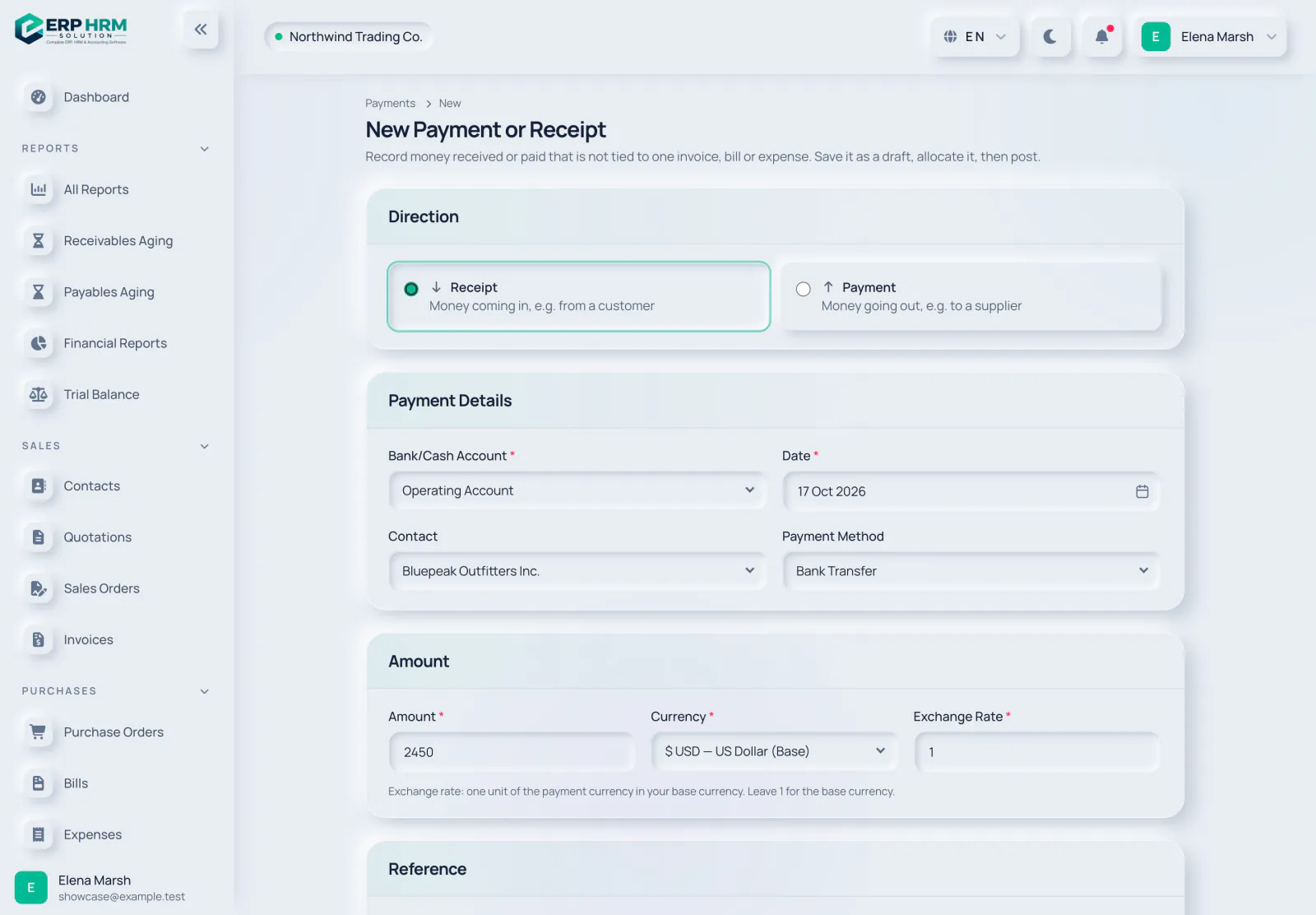
Step 1: Start a new payment
Go to Accounting → Payments and click New Payment.
-
Step 2: Choose the direction
Pick Receipt for money coming in or Payment for money going out.
- 1. Receipt
- 2. Payment
-
Step 3: Enter the details
Select the Bank/Cash Account and Date, and the Contact if the money is from or to a customer or supplier. Enter the Amount, Currency and Exchange Rate (leave 1 for your base currency).
- 1. Bank/Cash Account
- 2. Contact
- 3. Amount
-
Step 4: Save the draft
Click Save Draft. Nothing reaches the ledger yet.
-
Step 5: Allocate and post
On the payment page, use Add Allocation to apply the payment to open invoices (receipts) or to bills and approved expenses (payments) of that contact in the same currency. Partial allocation is supported. Then click Post Payment.
- Allocations cannot exceed the payment amount or any document's remaining balance.
- A posted receipt credits Accounts Receivable and a posted payment debits Accounts Payable, even for any unallocated part.
- Draft payments can be edited or removed with Delete Draft.
Void a posted payment
Open the payment and click Void Payment. Its journal entry is reversed (dated today) and the documents it paid become open again. The voided payment is kept for the audit trail.
Related guides
Ask about the product
Ask what the software can do, how a task works, or which countries and languages it supports. Answers come from these guides.
Thinking…
The AI assistant is not available right now. Search the guides or talk to our team. Contact support
AI can make mistakes. Check the linked guides.
Still need help?
Our support team reads every message and answers in plain language.
Contact support