Both reports need the pos.reports permission (Admin, Manager and Accountant roles by default). Open them from Point of Sale → Z Reports and Point of Sale → POS Sales.
Z Reports
-
Step 1: Pick the day
Choose the Date and optionally a Register (or All registers) and click Show.
-
Step 2: Read the day total
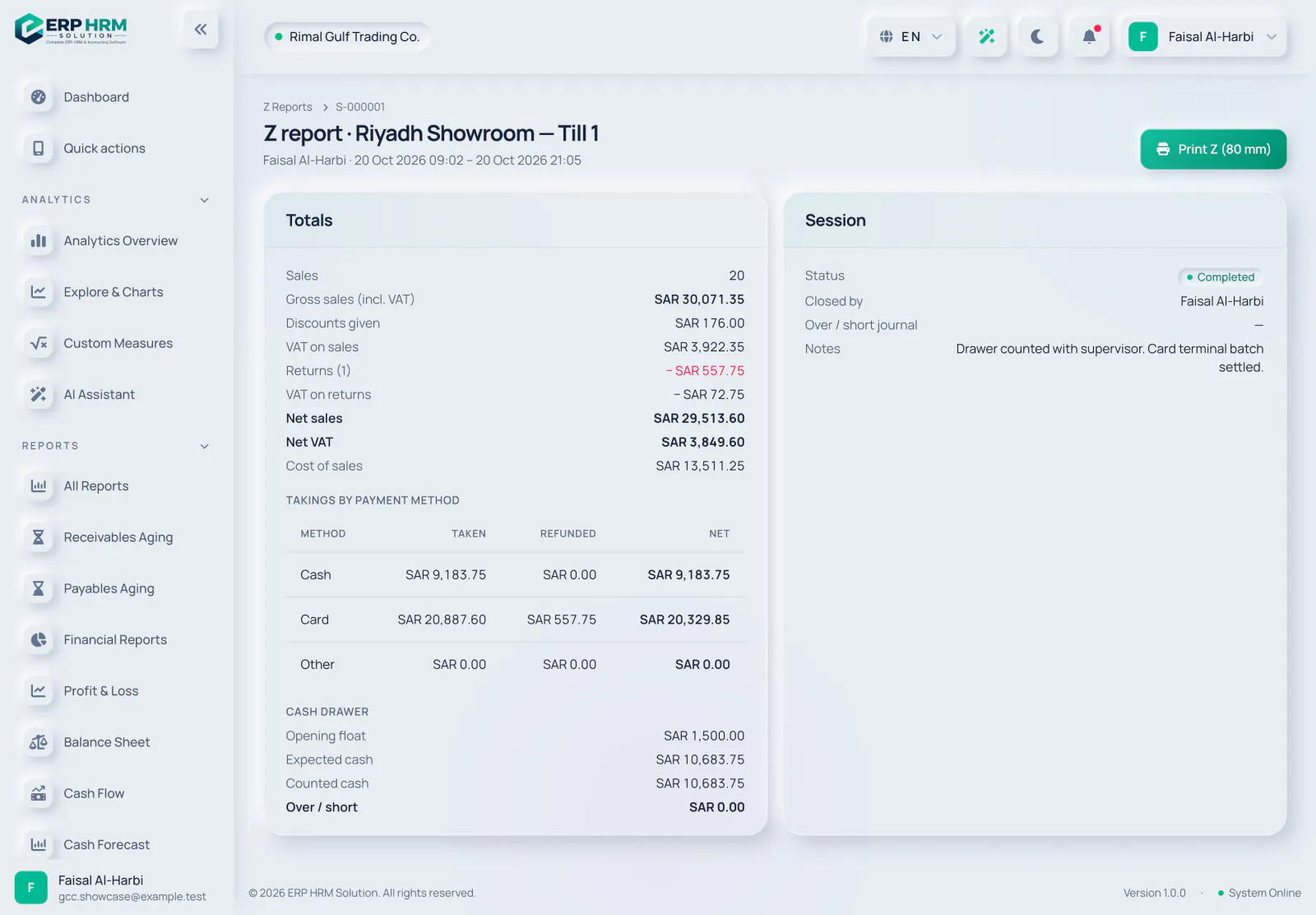
The day total shows gross sales (incl. VAT), returns, discounts given, net sales, VAT on sales and on returns, net VAT, cost of sales and the takings by payment method.
-
Step 3: Review each session
The sessions table lists each register and cashier with the opening float, expected cash, counted cash and Over / short. Open a session for its Z report and click Print Z (80 mm) for a thermal printout.
POS Sales
POS Sales lists every ticket with its invoice, payments and returns. Filter by From, To, Register and Receipt number, then click Show. Sales recorded from the offline queue are marked as a synced offline sale.
Related guides
Ask about the product
Ask what the software can do, how a task works, or which countries and languages it supports. Answers come from these guides.
Thinking…
The AI assistant is not available right now. Search the guides or talk to our team. Contact support
AI can make mistakes. Check the linked guides.
Still need help?
Our support team reads every message and answers in plain language.
Contact support