Invoices start as Draft so you can check them. Issuing an invoice posts it to accounting, adds it to your receivables and locks it against editing.
-
Step 1: Start the invoice
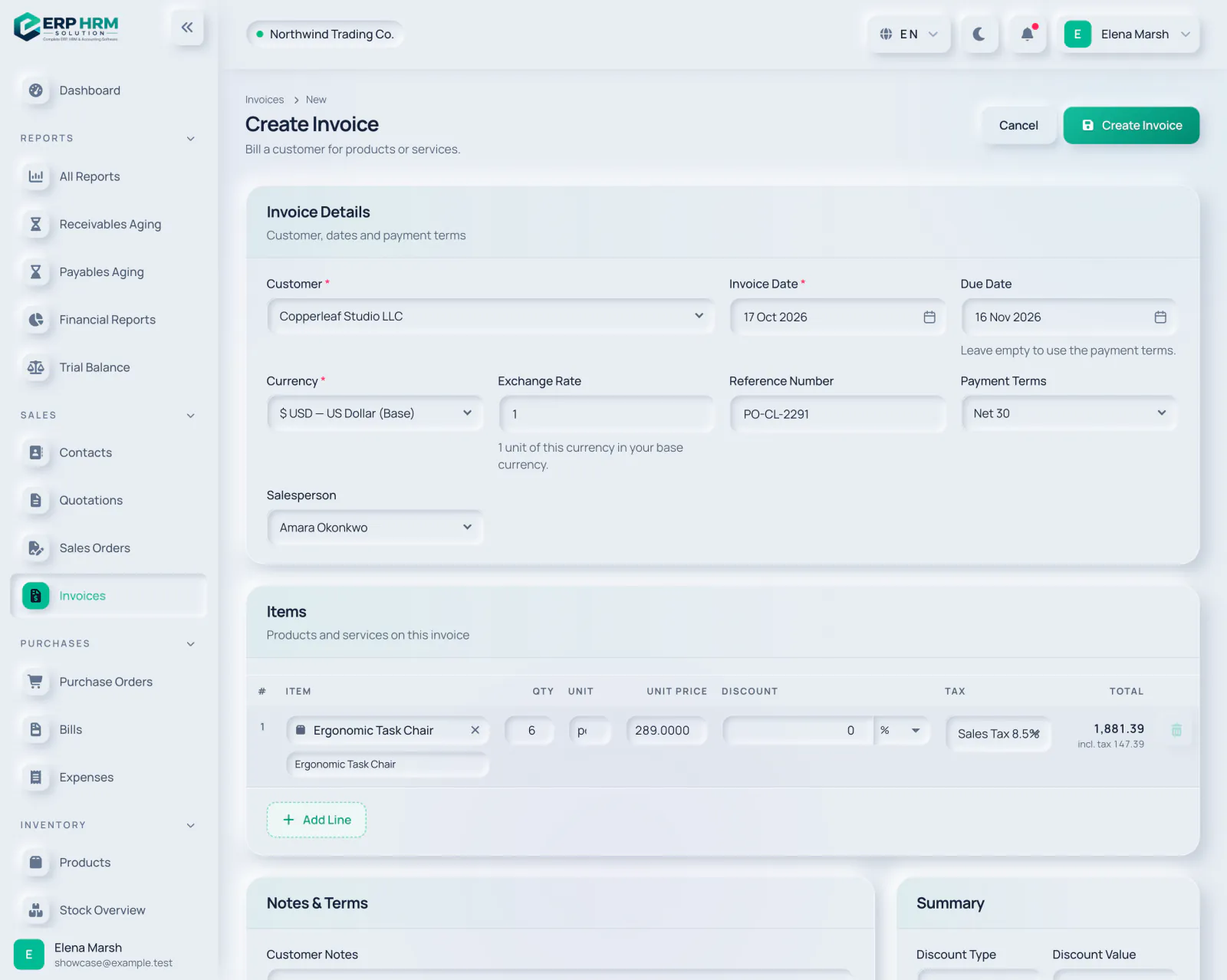
Click New Invoice on Sales › Invoices, or Create Invoice on an accepted quotation or a confirmed sales order. From a quotation or order, the customer, terms and lines are copied for you.
-
Step 2: Customer and dates
Choose the Customer. Invoice Date defaults to today. Enter the Due Date: it drives overdue tracking and receivables ageing, and an invoice without a due date ages from its invoice date.
- 1. Customer
- 2. Due Date
-
Step 3: Currency and terms
Pick the Currency. For a foreign currency, set the Exchange Rate: 1 unit of this currency in your base currency. Optionally set Reference Number (for example the customer’s PO number), Payment Terms and Salesperson.
- 1. Exchange Rate
- 2. Payment Terms
-
Step 4: Items and totals
Search products or services in Items, then adjust quantity, price, discount and tax. Customer Notes and Terms & Conditions are pre-filled from your invoice settings. Click Create Invoice.
- 1. Search product
- 2. Create Invoice
-
Step 5: Review the draft
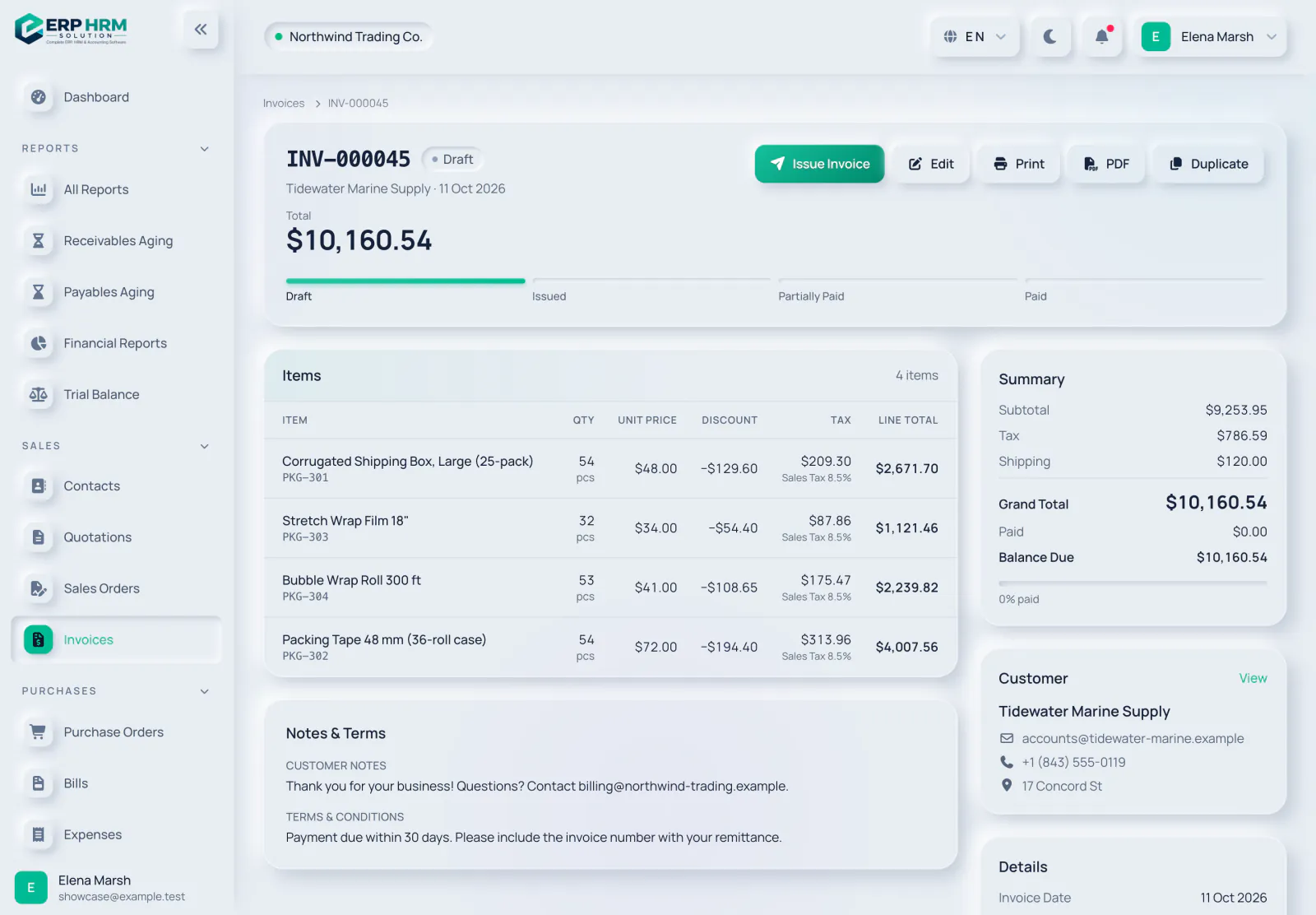
The new invoice opens as Draft. Use Edit to correct anything, and Print or PDF to preview it.
- 1. Draft
- 2. Edit
-
Step 6: Issue it
Click Issue Invoice and confirm. The invoice becomes Issued, is posted to accounting and can no longer be edited. You can now record payments against it.
- 1. Issue Invoice
Invoice statuses
- Draft: editable, not in accounting yet. Only drafts can be edited or deleted.
- Issued: posted and waiting for payment.
- Partially Paid / Paid: set automatically when you record payments.
- Overdue: an issued or partially paid invoice past its due date. The daily check sets this automatically; you can also click Mark Overdue under Manage.
- Cancelled / Void: available under Manage while no payment has been recorded. Both reverse the invoice’s accounting entries and cannot be undone.
Related guides
Ask about the product
Ask what the software can do, how a task works, or which countries and languages it supports. Answers come from these guides.
Thinking…
The AI assistant is not available right now. Search the guides or talk to our team. Contact support
AI can make mistakes. Check the linked guides.
Still need help?
Our support team reads every message and answers in plain language.
Contact support