On this page
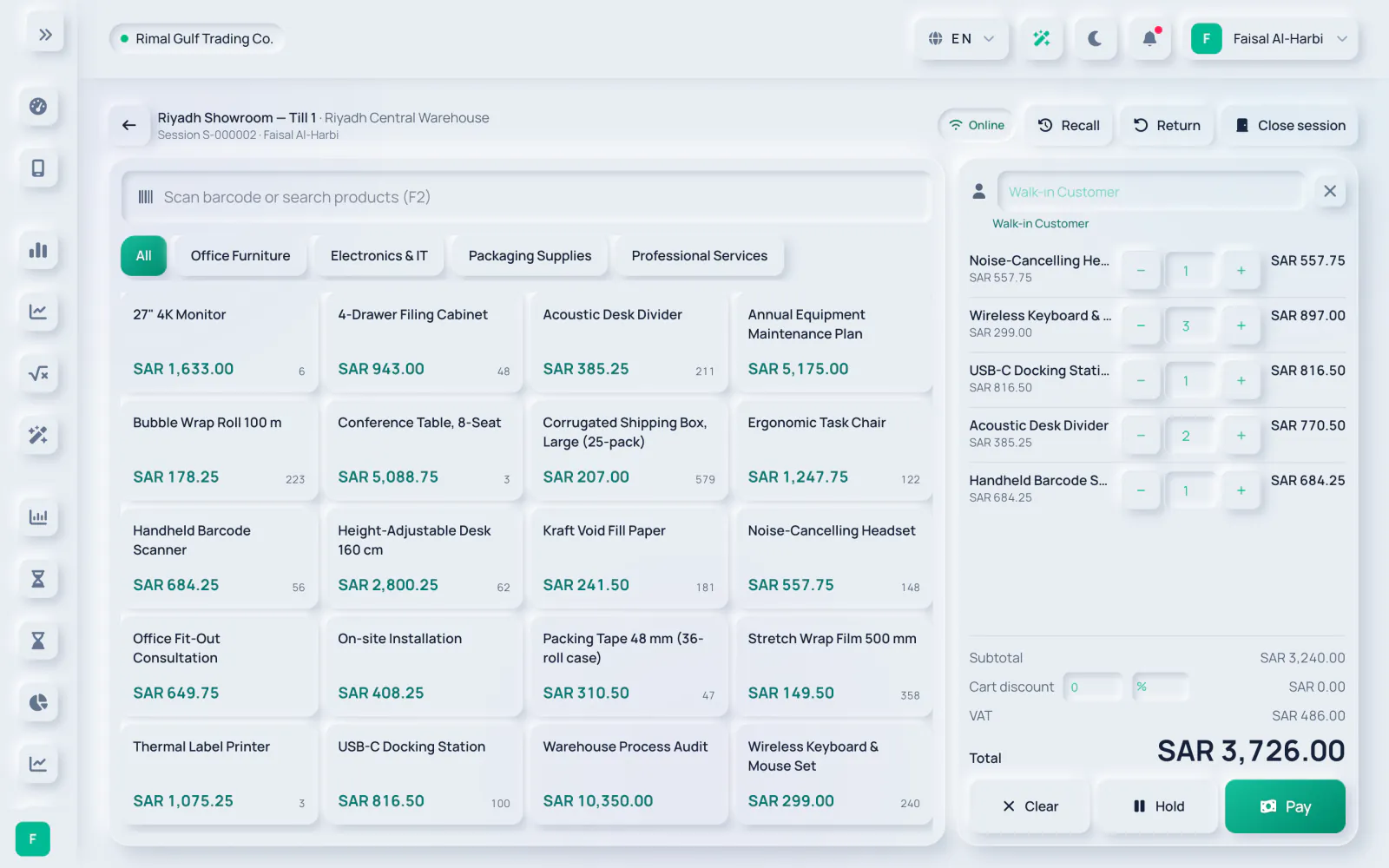
The selling screen is built for touch screens and barcode scanners. Products are the active products of your company, with the stock of the register's warehouse.
-
Step 1: Add products
Scan a barcode or type in Scan barcode or search products (F2); an exact barcode or SKU adds the product at once. You can also filter by category (All or a category name) and tap a product tile.
-
Step 2: Adjust the cart
Use + and − to change the quantity. Tap a line to open it, set a Discount as % or an amount, or Remove the line.
-
Step 3: Customer
Search a customer in the Customer box, or leave it for the register's walk-in customer. Click the cross to Remove customer.
-
Step 4: Cart discount
Enter a Cart discount as % or an amount. The panel shows Subtotal, the discount, VAT and the Total.
-
Step 5: Take payment
Click Pay. Tap a method with exact for a single payment, or enter amounts per method to split it. For card and other payments you can add a Reference / last 4 digits (optional) and use Rest to fill the remaining amount. For cash, tap a note amount; the Change is shown.
-
Step 6: Complete
Click Complete sale (it stays disabled while an amount is Still due). On Sale complete, click Print receipt or New sale.
Hold and recall
Click Hold to park the current cart (for example while a customer fetches another item) and serve the next customer. Click Recall to see Held orders and bring one back to the cart. Clear empties the cart after you confirm.
What a sale records
- An issued sales invoice for the customer, with the receipt number as its reference. It appears under Sales → Invoices.
- One payment per payment method, into the register's cash, card or other payments account.
- The stock issued from the register's warehouse and the cost of sales journal.
Related guides
Ask about the product
Ask what the software can do, how a task works, or which countries and languages it supports. Answers come from these guides.
Thinking…
The AI assistant is not available right now. Search the guides or talk to our team. Contact support
AI can make mistakes. Check the linked guides.
Still need help?
Our support team reads every message and answers in plain language.
Contact support