Every journal entry belongs to a fiscal period. Periods are created automatically, one per calendar month, the first time something is posted into that month. Each period is Open, Soft-locked, Closed or Locked.
- Open — accepts postings.
- Soft-locked — under review. Only users who may post into locked periods (the Admin and Accountant roles by default) can still post; others get "The fiscal period … is soft-locked. Only an accountant or administrator can post into it." Unlock returns it to Open.
- Closed — no postings are accepted until it is reopened.
- Locked — final. A locked period can never be changed or reopened.
Close a month
-
Step 1: Open Fiscal Periods
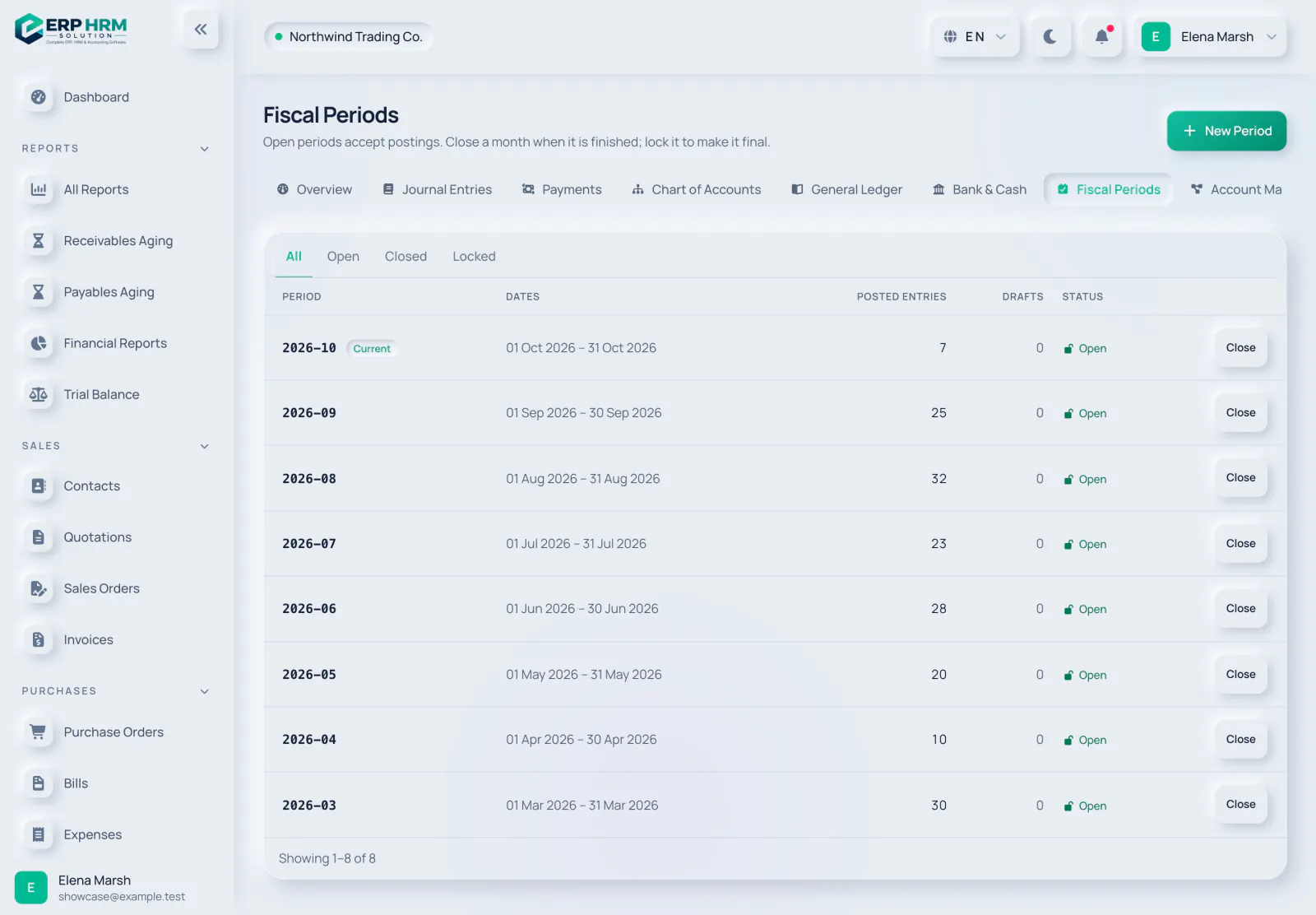
Go to Accounting → Fiscal Periods. Use the All, Open, Soft-locked, Closed and Locked tabs to filter. The current month is tagged Current.
- 1. Status tabs
- 2. Status
-
Step 2: Clear the drafts
Check the Drafts column. A period with draft journal entries cannot be closed: post or delete those drafts first. The Close button is disabled until then.
- 1. Drafts
-
Step 3: Close it
Click Close on the period row and confirm. No more postings are accepted in that month until it is reopened.
- 1. Close
Reopen or lock
An open period also shows Soft-lock, which keeps day-to-day users out while accountants finish the month. A closed period shows Reopen and Lock. Reopen asks for a Reason, which is kept in the audit trail and shown under the status as "Reopened: …"; the period returns to Open. Lock makes it final; a locked period shows Final and has no actions.
A simple month-end checklist
- On the Accounting overview, check Needs attention: Draft journal entries and Draft payments should be zero for the month.
- Make sure the suspense warning is not shown, or move its balance with a journal entry.
- Open the Trial Balance for the month and confirm it is balanced.
- Close the period. Lock it only when you are sure nothing will change, for example after the accounts are filed.
Custom periods
Click New Period to add a period by hand. Picking a Start Date fills in the rest of that month; adjust the End Date for a custom window, then click Save Period. Periods cannot overlap.
Related guides
Ask about the product
Ask what the software can do, how a task works, or which countries and languages it supports. Answers come from these guides.
Thinking…
The AI assistant is not available right now. Search the guides or talk to our team. Contact support
AI can make mistakes. Check the linked guides.
Still need help?
Our support team reads every message and answers in plain language.
Contact support