On this page
A sales order records a confirmed customer order and lets you deliver it from stock, in one go or in parts. You can create one from an accepted quotation or from scratch with New Sales Order.
-
Step 1: Open the accepted quotation
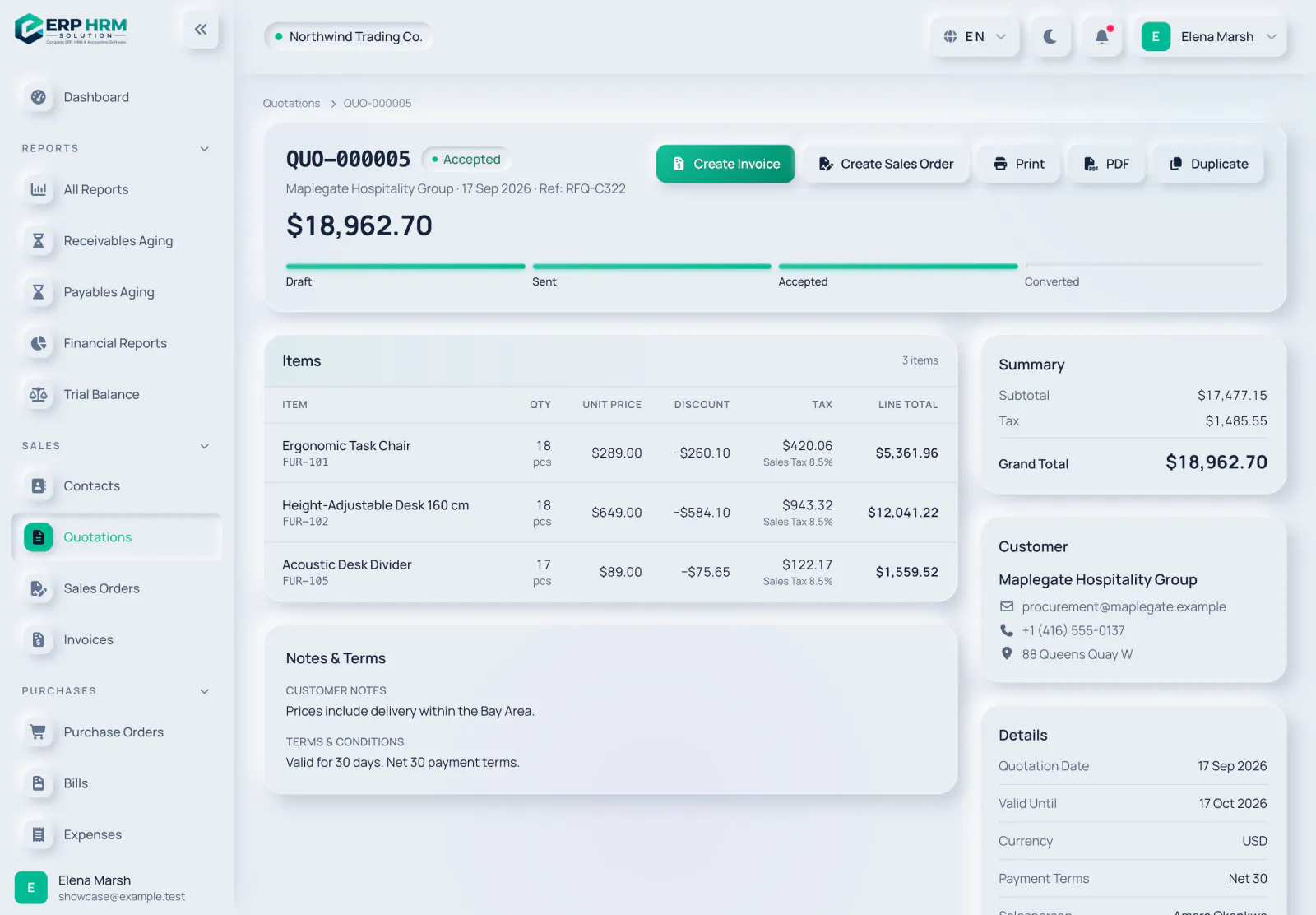
Only an Accepted quotation shows the Create Sales Order and Create Invoice buttons. Click Create Sales Order.
- 1. Accepted
- 2. Create Sales Order
-
Step 2: Check the order details
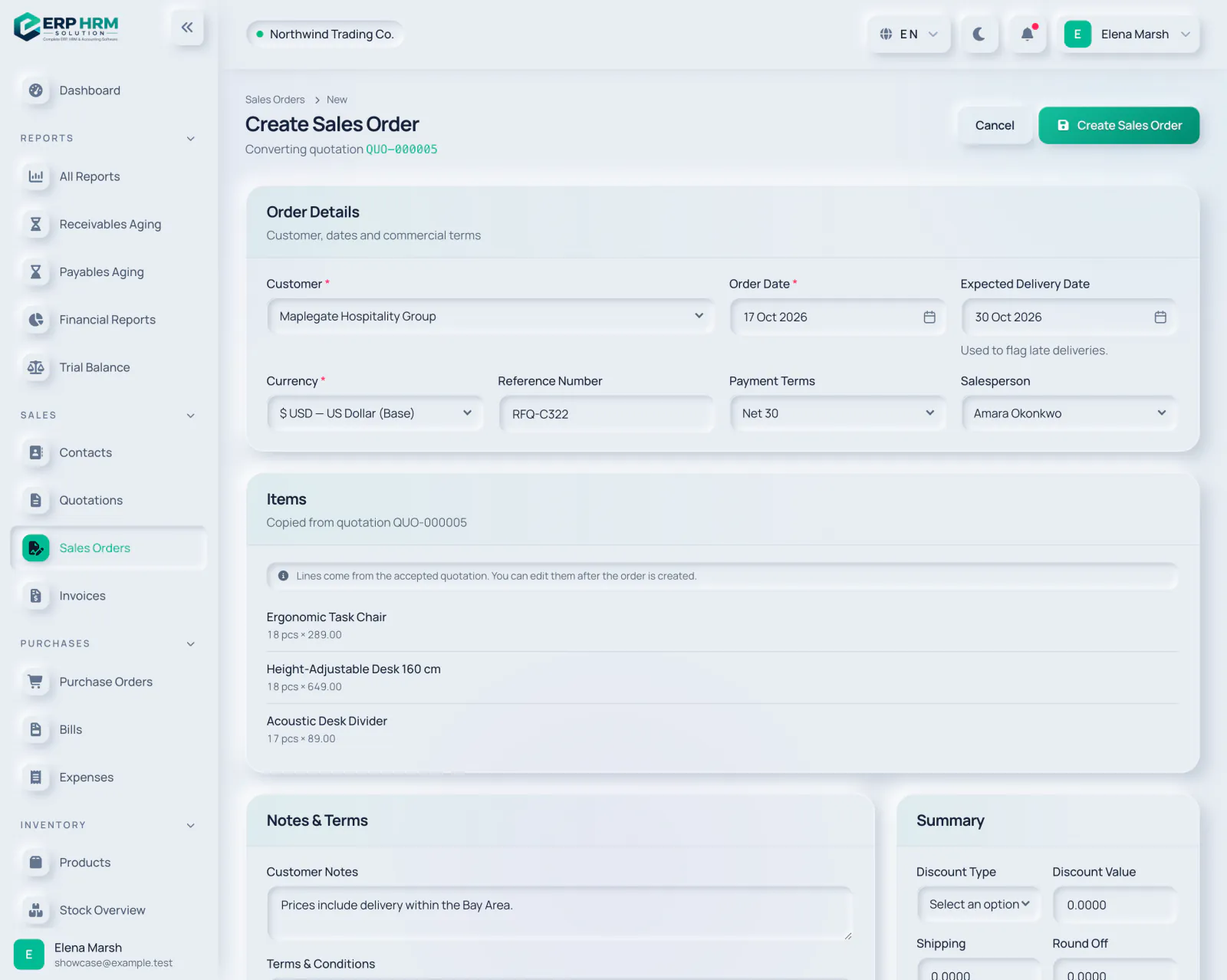
The customer, currency, reference, payment terms and salesperson are copied from the quotation. Add an Expected Delivery Date if you have one; it is used to flag late deliveries. The lines come from the accepted quotation; you can edit them after the order is created.
- 1. Source quotation
- 2. Expected Delivery Date
- 3. Lines copied
-
Step 3: Create the order
Click Create Sales Order. The order is created as Draft and the quotation becomes Converted.
- 1. Create Sales Order
-
Step 4: Confirm it
On the order, click Confirm Order. A confirmed order can be processed, delivered and invoiced.
-
Step 5: Process and deliver
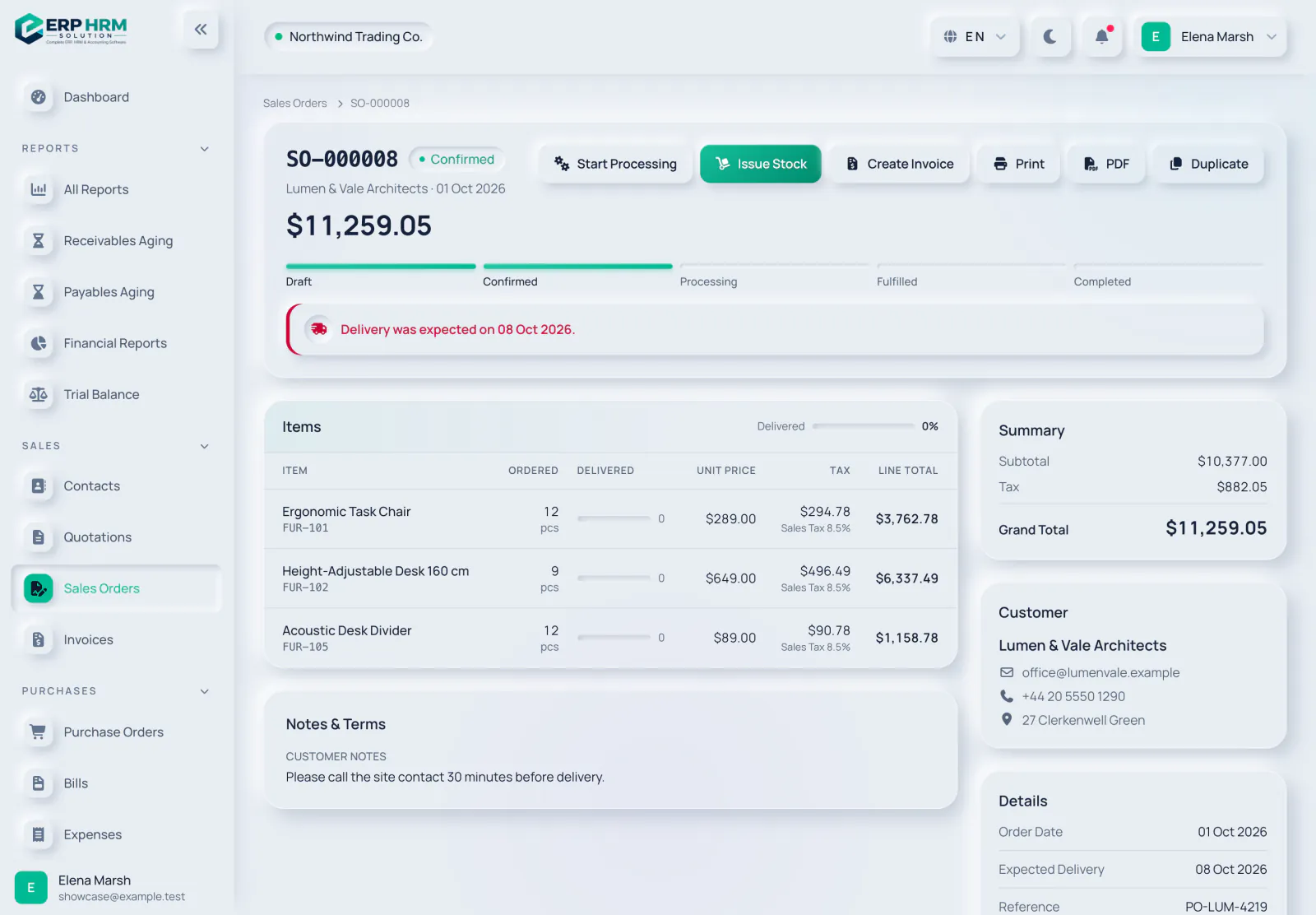
Optionally click Start Processing to show work has begun. When goods leave the warehouse, click Issue Stock, choose the Warehouse, enter the quantity to deliver per line (or Deliver all remaining) and click Post Goods Issue.
- 1. Start Processing
- 2. Issue Stock
- 3. Delivered
How fulfilment works
- Each goods issue reduces stock in the chosen warehouse and updates the Delivered column. Available stock is checked when you post.
- When some quantities are still open, the order becomes Partially Fulfilled. When every stocked line is fully delivered it becomes Completed automatically.
- Lines for services, or lines not linked to a stocked product, are not issued from stock. If nothing is left to deliver from stock, use Mark Completed once the work is done; any remaining quantities will not be delivered.
- Use Put On Hold and Resume to pause an order, and Cancel Order to stop it. Once goods are issued, the lines can no longer be edited.
Sales order statuses are Draft, Confirmed, Processing, Partially Fulfilled, On Hold, Completed and Cancelled.
Invoice the order
While the order is Confirmed, Processing or Partially Fulfilled, click Create Invoice to bill it. An order is invoiced once, for its full lines; the invoice appears under Related documents together with the goods issues.
Related guides
Ask about the product
Ask what the software can do, how a task works, or which countries and languages it supports. Answers come from these guides.
Thinking…
The AI assistant is not available right now. Search the guides or talk to our team. Contact support
AI can make mistakes. Check the linked guides.
Still need help?
Our support team reads every message and answers in plain language.
Contact support