On this page
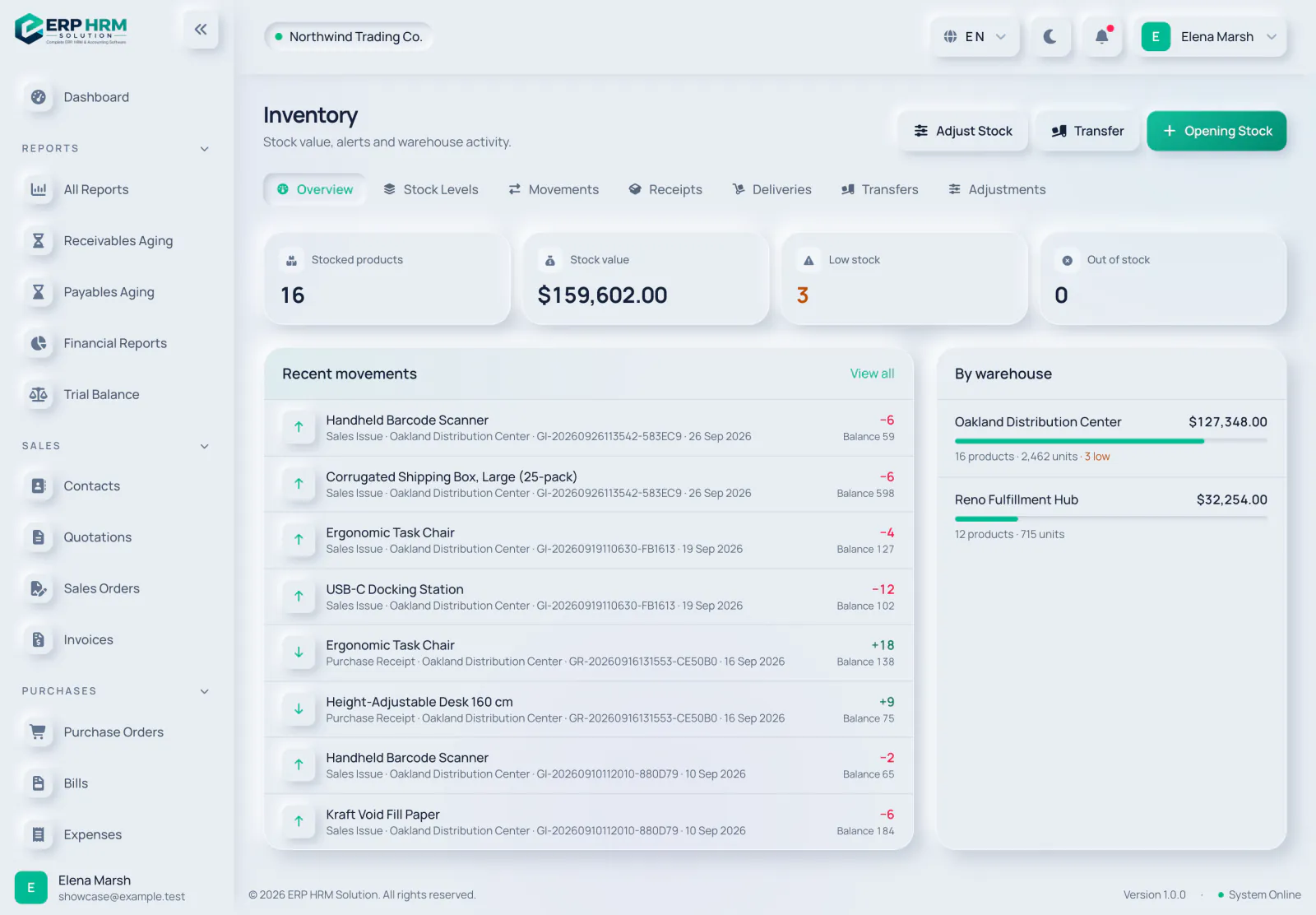
Inventory › Stock Movements lists every change in stock, with its source document. Movements are never edited; mistakes are corrected by a new movement, so the ledger is a complete history.
- 1. Movements
- 2. View all
Where movements come from
- Purchase Receipt: a goods receipt against a purchase order (stock in).
- Sales Issue: a goods issue against a sales order (stock out).
- Stock Transfer Out and Stock Transfer In: a completed transfer between warehouses.
- Adjustment Increase and Adjustment Decrease: a posted stock adjustment.
- Opening Stock: stock entered when you started.
-
Step 1: Filter the ledger
Search by product, SKU or barcode, or filter by Warehouse, Product, Movement Type and a From / To date range.
-
Step 2: Read a row
Each row shows the Date, Product, Movement type, Source document (click it to open the receipt, issue, transfer or adjustment), Quantity, Unit Cost and the Balance in that warehouse after the movement.
-
Step 3: Open the details
Click the view icon to see one movement: product, SKU, warehouse, date, source, who recorded it, and the quantity, unit cost, total cost and balance after.
Reading balances
- The Balance is per product and per warehouse, so the same product has a separate running balance in each warehouse.
- Stock in is shown with a plus sign and stock out with a minus sign.
- A negative balance is only possible for products that have Allow Negative Stock switched on.
The Receipts and Deliveries tabs list the goods receipts and goods issues themselves, if you prefer to browse by document.
Related guides
Ask about the product
Ask what the software can do, how a task works, or which countries and languages it supports. Answers come from these guides.
Thinking…
The AI assistant is not available right now. Search the guides or talk to our team. Contact support
AI can make mistakes. Check the linked guides.
Still need help?
Our support team reads every message and answers in plain language.
Contact support