A purchase order (PO) records what you are ordering from a supplier and at what cost. Confirmed orders can then be received into stock and billed.
-
Step 1: Start a new order
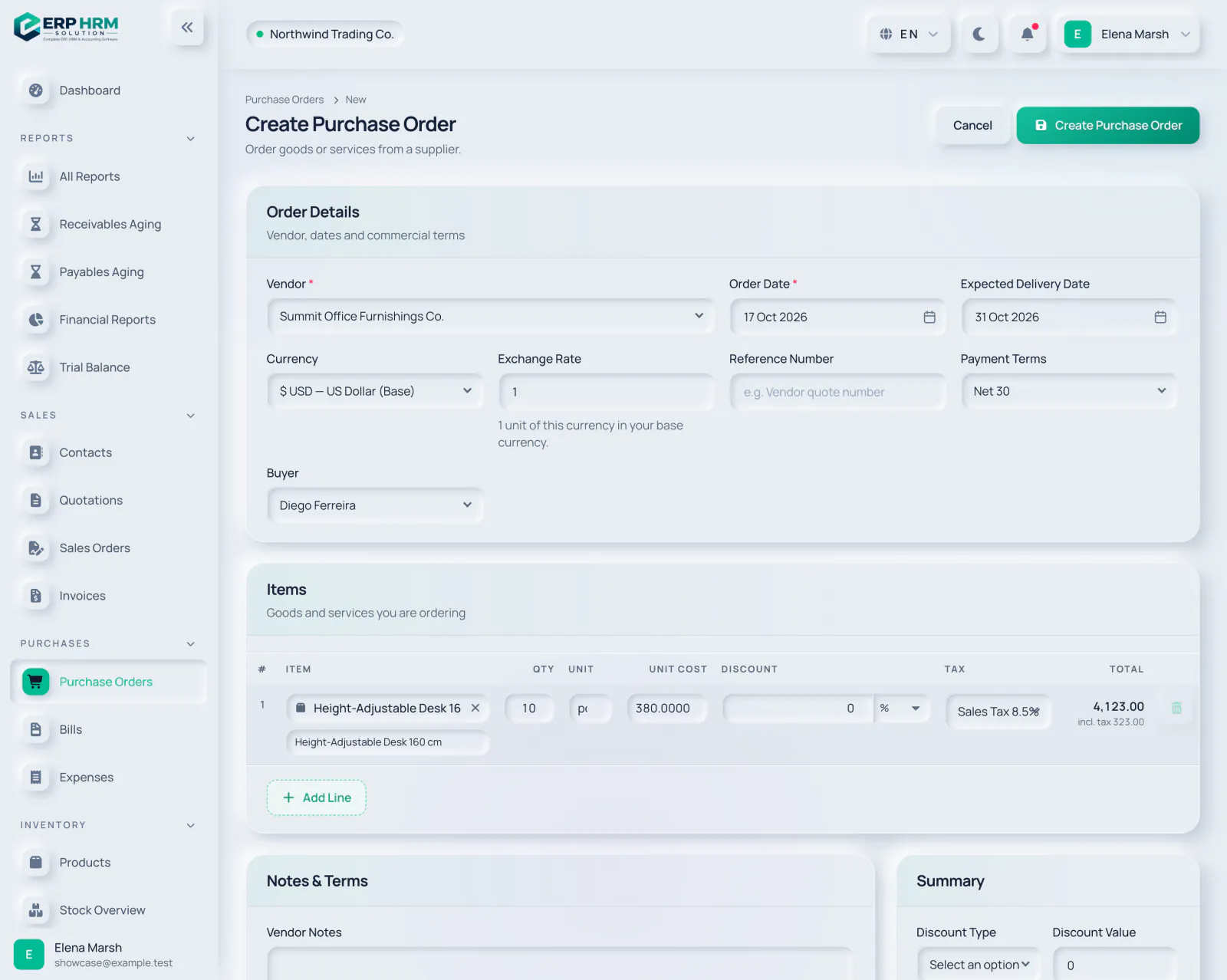
Open Purchases › Purchase Orders and click New Purchase Order.
-
Step 2: Vendor and dates
Choose the Vendor (required; contacts of type Vendor or Both are listed). Order Date defaults to today. Add an Expected Delivery Date so late deliveries are flagged on the order.
- 1. Vendor
- 2. Expected Delivery Date
-
Step 3: Currency and terms
Pick the Currency and, for a foreign currency, the Exchange Rate (1 unit of this currency in your base currency). Optionally add a Reference Number such as the vendor’s quote number, Payment Terms and the Buyer.
-
Step 4: Add the items
Search a product by name, SKU or barcode. The line is filled with its purchase price as Unit Cost, its unit and tax rate. Adjust Qty, Unit Cost, Discount and Tax, and click Add Line for more.
- 1. Search product
- 2. Unit Cost
-
Step 5: Save
Add Vendor Notes, Terms & Conditions or Internal Notes if needed, then click Create Purchase Order. It is saved as Draft.
- 1. Create Purchase Order
-
Step 6: Send and confirm
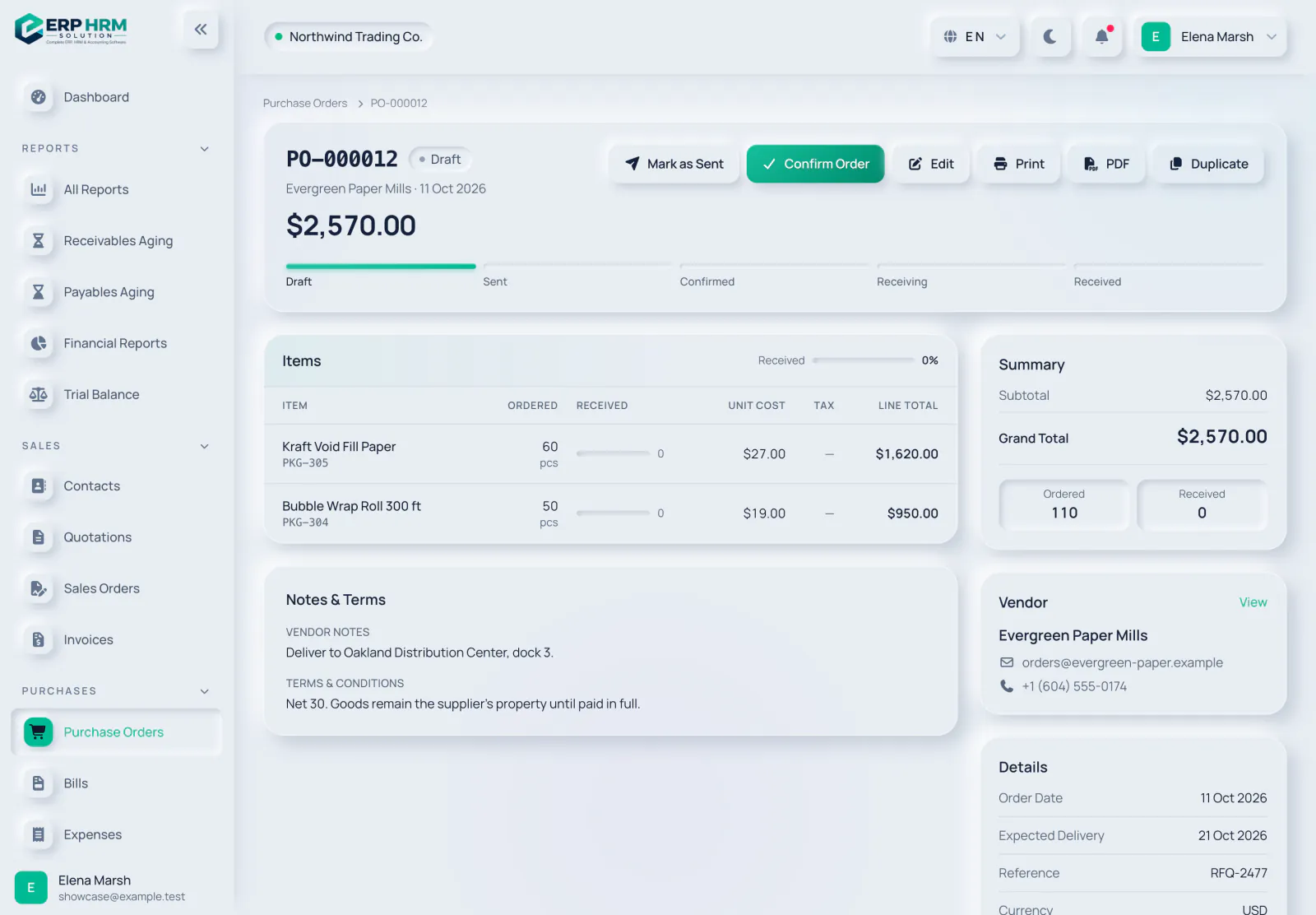
Use Print or PDF to send the order to the supplier, then click Mark as Sent. When the supplier confirms, click Confirm Order. You can also confirm straight from Draft.
- 1. Mark as Sent
- 2. Confirm Order
- 3. Print
Purchase order statuses
- Draft and Sent: still editable with Edit.
- Confirmed: the supplier has accepted it. You can now receive stock and create bills.
- Partially Received / Received: set automatically as goods are received.
- On Hold: paused with Put On Hold (from Draft, Sent or Confirmed); click Resume to continue.
- Cancelled: stopped with Cancel Order under Manage.
Related guides
Ask about the product
Ask what the software can do, how a task works, or which countries and languages it supports. Answers come from these guides.
Thinking…
The AI assistant is not available right now. Search the guides or talk to our team. Contact support
AI can make mistakes. Check the linked guides.
Still need help?
Our support team reads every message and answers in plain language.
Contact support