On this page
You can log time on projects where you are the manager or a team member, while the project is Planned, Active or On hold. Time starts as a draft and counts towards billing and cost only after it is approved.
-
Step 1: Open your timesheet
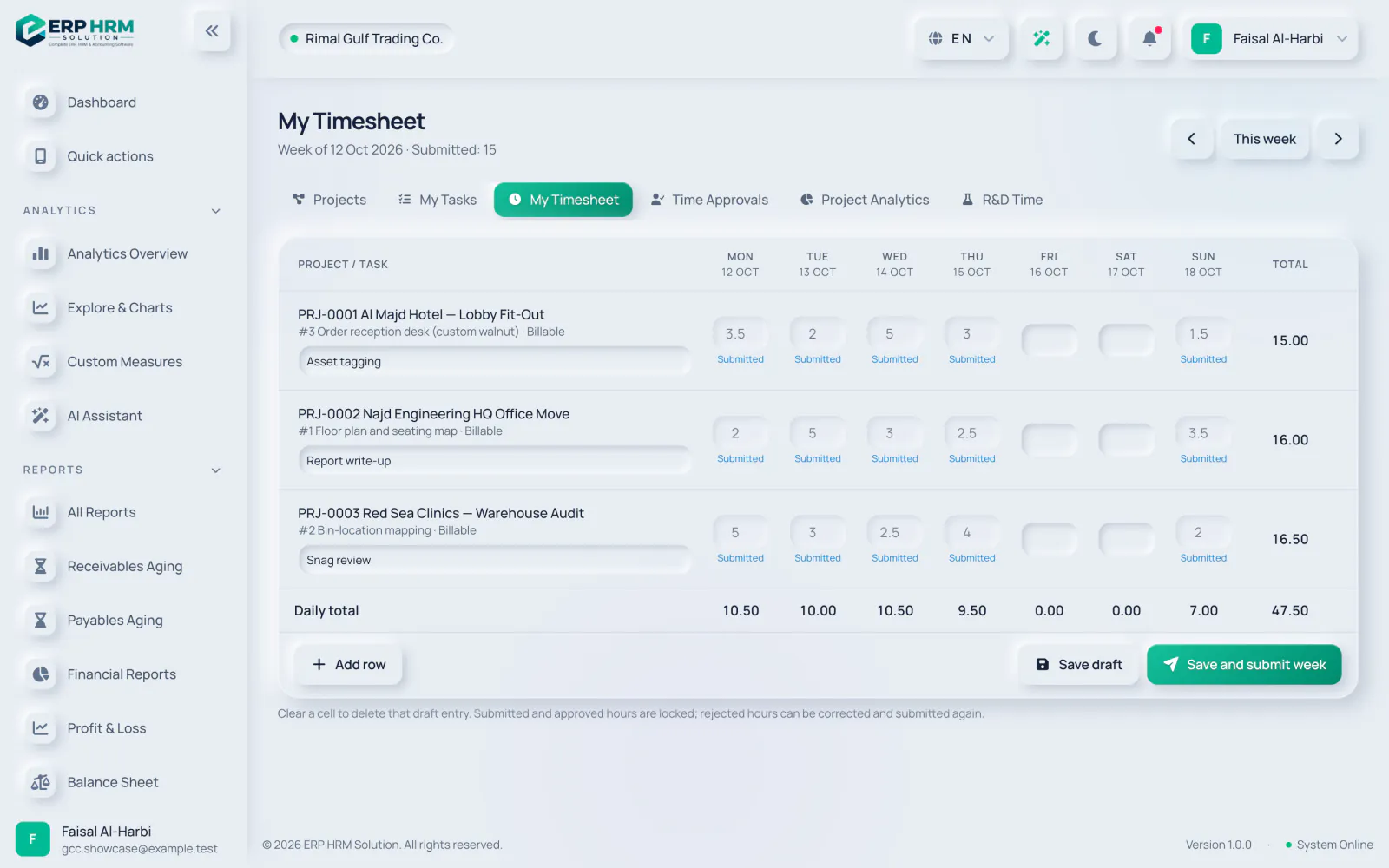
Open Projects › My Timesheet. It shows one week, Monday to Sunday. Use the arrows or This week to change week.
-
Step 2: Add a row
Click Add row, choose the project and optionally a task (or No task). On billable projects, untick Billable for time the customer should not pay for. Add a Description if useful.
-
Step 3: Enter hours
Type hours in each day’s cell, in steps of 0.25 (15 minutes). Totals per row and per day update as you type.
-
Step 4: Save or submit
Click Save draft to keep working on it later, or Save and submit week to send all draft hours of the week for approval.
Log from a task
On a task page, the Time card has a quick form: pick the Date, enter Hours and a Description, and click Log time. The entry is saved as a draft; submit it later from My Timesheet.
Time entry statuses
- Draft: saved but not sent. You can change or clear it.
- Submitted: waiting for approval and locked.
- Approved: counted in project hours, cost and billing. Locked.
- Rejected: sent back with a reason. Correct it and submit the week again.
Related guides
Ask about the product
Ask what the software can do, how a task works, or which countries and languages it supports. Answers come from these guides.
Thinking…
The AI assistant is not available right now. Search the guides or talk to our team. Contact support
AI can make mistakes. Check the linked guides.
Still need help?
Our support team reads every message and answers in plain language.
Contact support