Products and services are what you put on quotations, orders, invoices and bills. Products can be stocked in your warehouses; services never are.
-
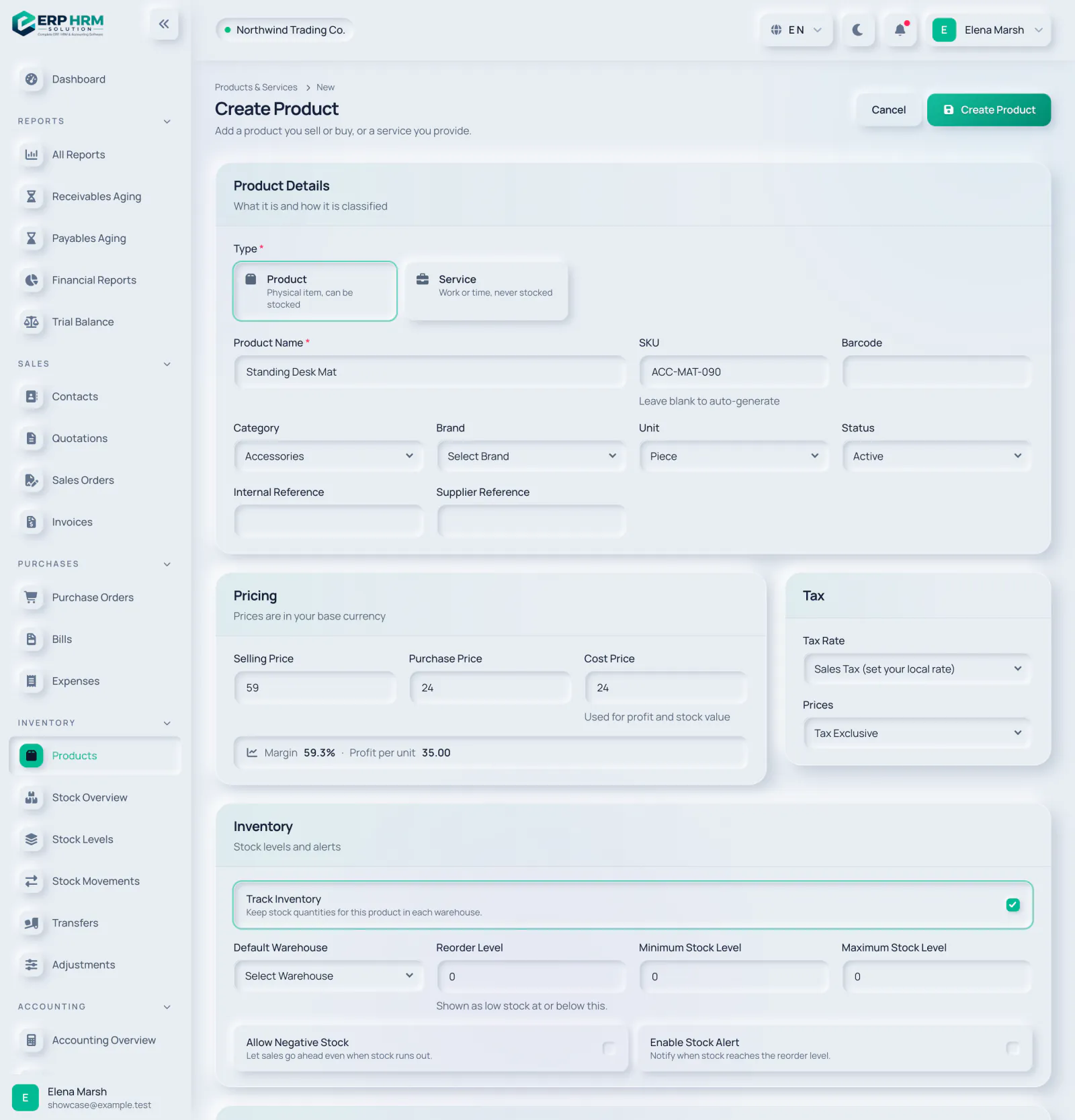
Step 1: Start a new product
Open Inventory › Products and click New Product.
-
Step 2: Choose the type
Pick Product (a physical item that can be stocked) or Service (work or time, never stocked). The Inventory settings only appear for products.
- 1. Type
-
Step 3: Name and identify it
Enter the Product Name (required). Leave SKU blank to auto-generate one. Add a Barcode if you scan items. SKU and barcode must be unique in your company. Optionally choose a Category, Brand and Unit, and set the Status (Active, Inactive or Archived).
- 1. Product Name
- 2. SKU
-
Step 4: Set the prices
Prices are in your base currency. Selling Price fills sales documents and Purchase Price fills purchase orders and bills. Cost Price is used for profit and stock value. The form previews the Margin and Profit per unit.
- 1. Selling Price
- 2. Cost Price
-
Step 5: Tax
Choose the default Tax Rate and whether Prices are Tax Exclusive or Tax Inclusive. Picking the product on a document fills in this tax rate.
-
Step 6: Inventory settings
Keep Track Inventory on to keep stock quantities for this product in each warehouse. Then set a Default Warehouse, the Reorder Level (shown as low stock at or below this), Minimum Stock Level and Maximum Stock Level, and switch on Enable Stock Alert if you want notifications.
- 1. Track Inventory
-
Step 7: Save
Add a Short Description (one line shown on documents and lists) and a longer Description if useful, then click Create Product.
- 1. Create Product
Related guides
Ask about the product
Ask what the software can do, how a task works, or which countries and languages it supports. Answers come from these guides.
Thinking…
The AI assistant is not available right now. Search the guides or talk to our team. Contact support
AI can make mistakes. Check the linked guides.
Still need help?
Our support team reads every message and answers in plain language.
Contact support