On this page
When you pay a supplier, record the payment on the bill. It is posted to accounting immediately and reduces the balance due.
Before you start
- The bill must be Received, Partially Paid or Overdue with a balance due. Draft bills cannot be paid; click Mark as Received first.
- You need an active bank or cash account in the bill’s currency (Accounting › Bank & Cash).
- You need permission to create and post payments. The Admin and Accountant roles have it by default.
-
Step 1: Open Record Payment
Open the bill and click Record Payment.
-
Step 2: Amount and date
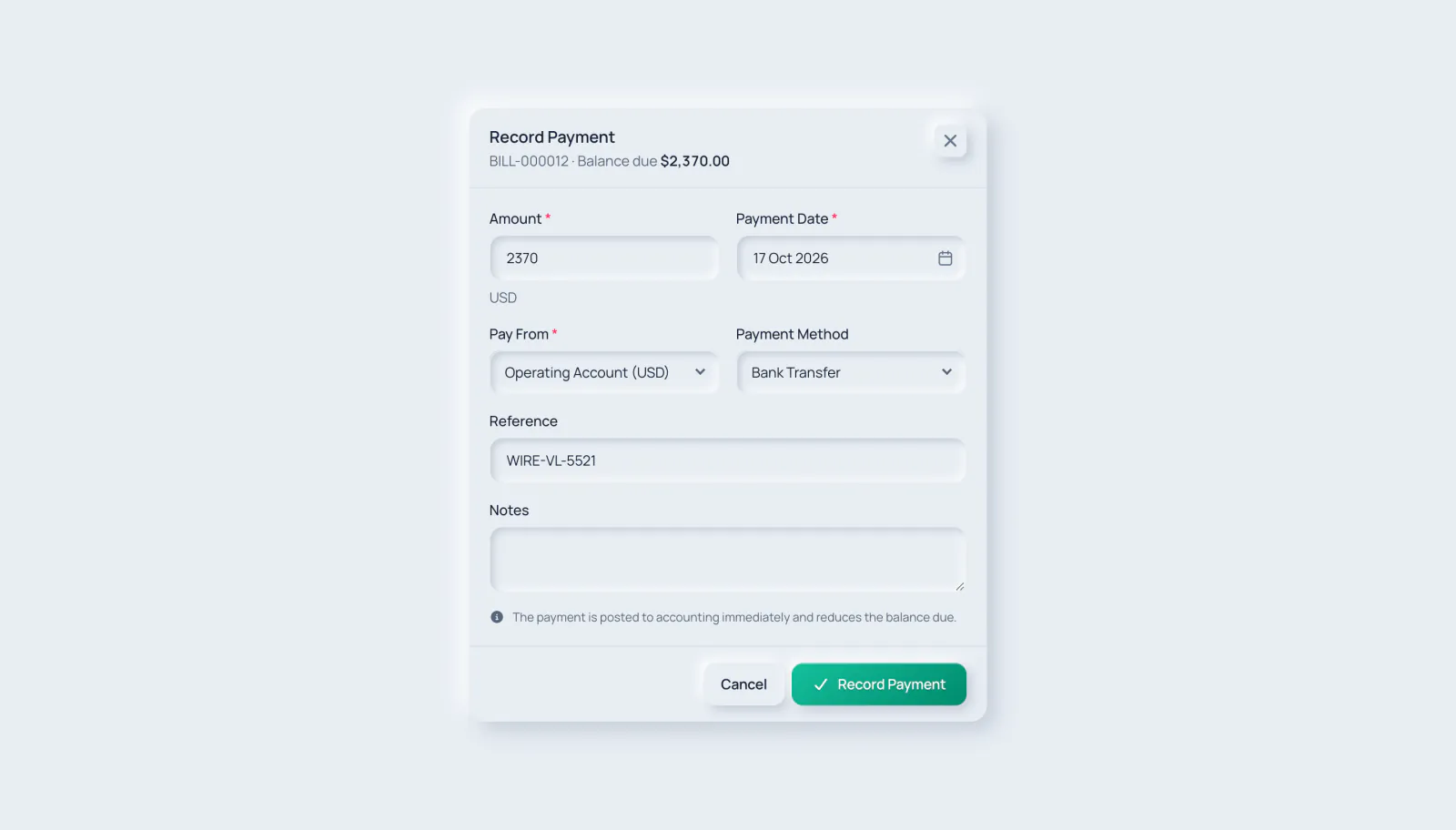
Amount starts at the full balance due; lower it for a part payment. It cannot exceed the balance due, and the Payment Date cannot be in the future.
- 1. Amount
- 2. Payment Date
-
Step 3: Pay From
In Pay From, choose the bank or cash account the money left from. Its currency must match the bill currency. Optionally choose a Payment Method and add a Reference and Notes.
- 1. Pay From
- 2. Payment Method
-
Step 4: Save
Click Record Payment. The payment appears under Payments on the bill.
- 1. Record Payment
After a part payment the bill becomes Partially Paid; when nothing is left it becomes Paid. The Summary shows Paid, Balance Due and the percentage paid.
Common messages
- “The bank/cash account currency (…) must match the payment currency (…)”: choose an account in the document’s currency.
- “The payment cannot be more than the balance due.”: lower the Amount; the balance due is shown at the top of the dialog.
- No Record Payment button: the document is still a draft, is already fully paid, or you do not have permission to record payments.
Every recorded payment also appears in Accounting › Payments, with its own payment number, for people who can view payments.
Related guides
Ask about the product
Ask what the software can do, how a task works, or which countries and languages it supports. Answers come from these guides.
Thinking…
The AI assistant is not available right now. Search the guides or talk to our team. Contact support
AI can make mistakes. Check the linked guides.
Still need help?
Our support team reads every message and answers in plain language.
Contact support