Leave requests are counted in working days from your schedule and holidays. Only active employees with a linked user account can request leave for themselves; HR staff who can view all leave can also request on behalf of others.
-
Step 1: Open the request form
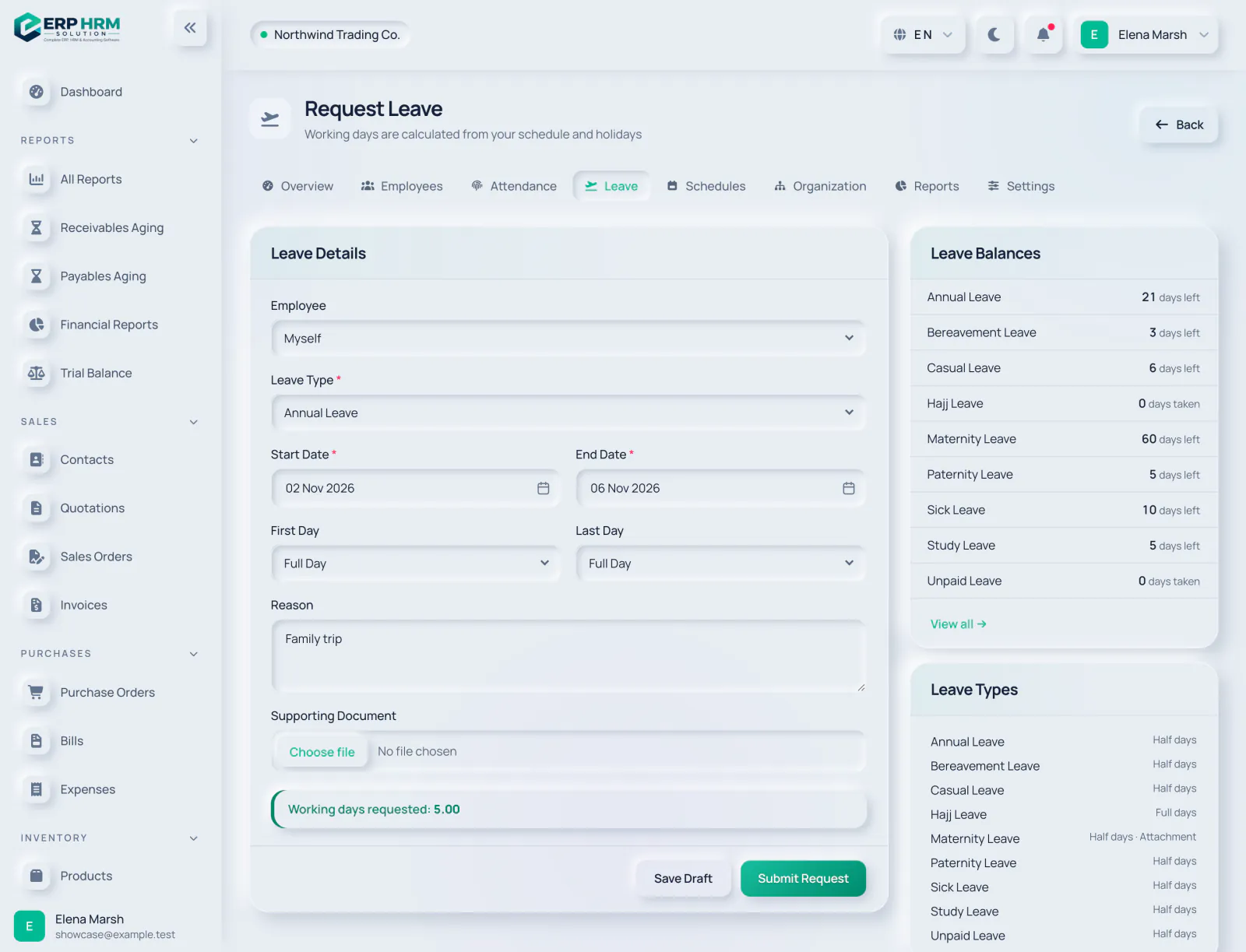
In HR, click Leave, then Request Leave.
-
Step 2: Choose the leave
Select the Leave Type. HR staff also see an Employee selector (Myself or another employee). Your Leave Balances are shown on the right.
- 1. Employee
- 2. Leave Type
- 3. Leave Balances
-
Step 3: Pick the dates
Set the Start Date and End Date. For half days, set First Day or Last Day to First Half or Second Half (only if the leave type allows half days). The box below shows the Working days requested.
- 1. Start Date
- 2. First Day
-
Step 4: Add a reason and document
Write a Reason and attach a Supporting Document if the leave type requires one.
- 1. Supporting Document
-
Step 5: Submit
Click Submit Request, or Save Draft to finish later. Submitting reserves the days from your balance.
Rules checked on submission
- The dates must contain at least one working day and cannot overlap another pending or approved leave.
- A request cannot span two leave years; split it at 31 December.
- You need enough balance, unless the leave type allows a negative balance.
- A leave type that does not require approval is approved immediately.
Who approves
The request goes to the employee's primary manager if that person is working, has a linked user and may approve leave. Otherwise it goes to the next manager up, and failing that to HR reviewers. With Two-level leave approval switched on in HR Settings, the manager's approval forwards the request to their own manager. Nobody can approve their own leave.
-
Step 1: Open your approvals
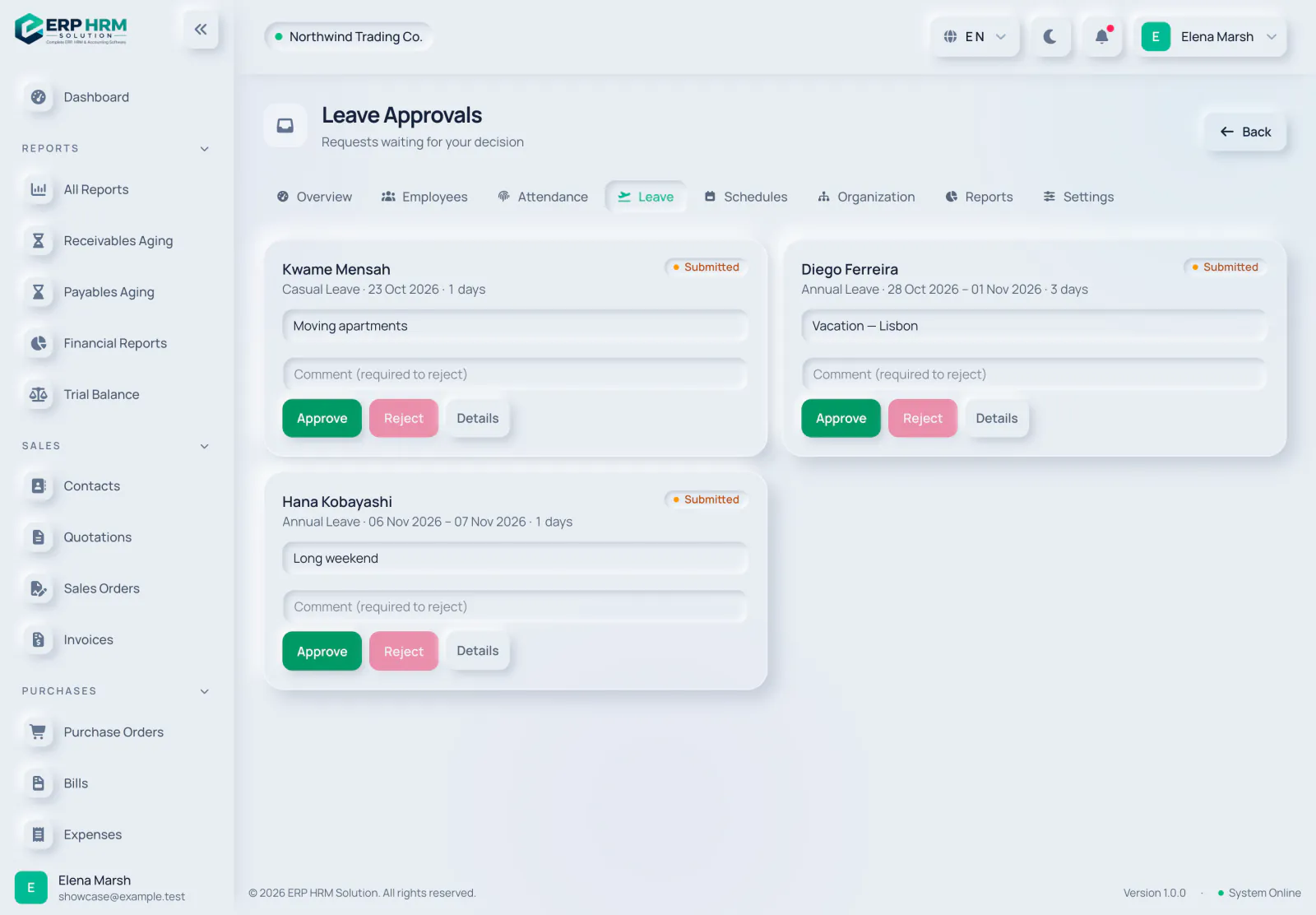
On the Leave page click Approvals; the badge shows how many requests wait for you. The HR overview also lists them under Waiting for Your Approval.
-
Step 2: Decide
Click Approve, or type a comment and click Reject — a comment is required to reject. Use Details to see the full request and its workflow history.
- 1. Comment
- 2. Approve
- 3. Reject
- 4. Details
Withdrawing and cancelling
Open the request. Withdraw Request is available until it is decided and releases the reserved days. Cancel Leave on approved leave returns the days to the balance; the employee can cancel before the leave starts, and HR with cancel permission at any time.
Related guides
Ask about the product
Ask what the software can do, how a task works, or which countries and languages it supports. Answers come from these guides.
Thinking…
The AI assistant is not available right now. Search the guides or talk to our team. Contact support
AI can make mistakes. Check the linked guides.
Still need help?
Our support team reads every message and answers in plain language.
Contact support