A stock transfer moves products from one of your warehouses to another. Stock only moves when the transfer is completed, so each step can be checked along the way.
-
Step 1: Start a transfer
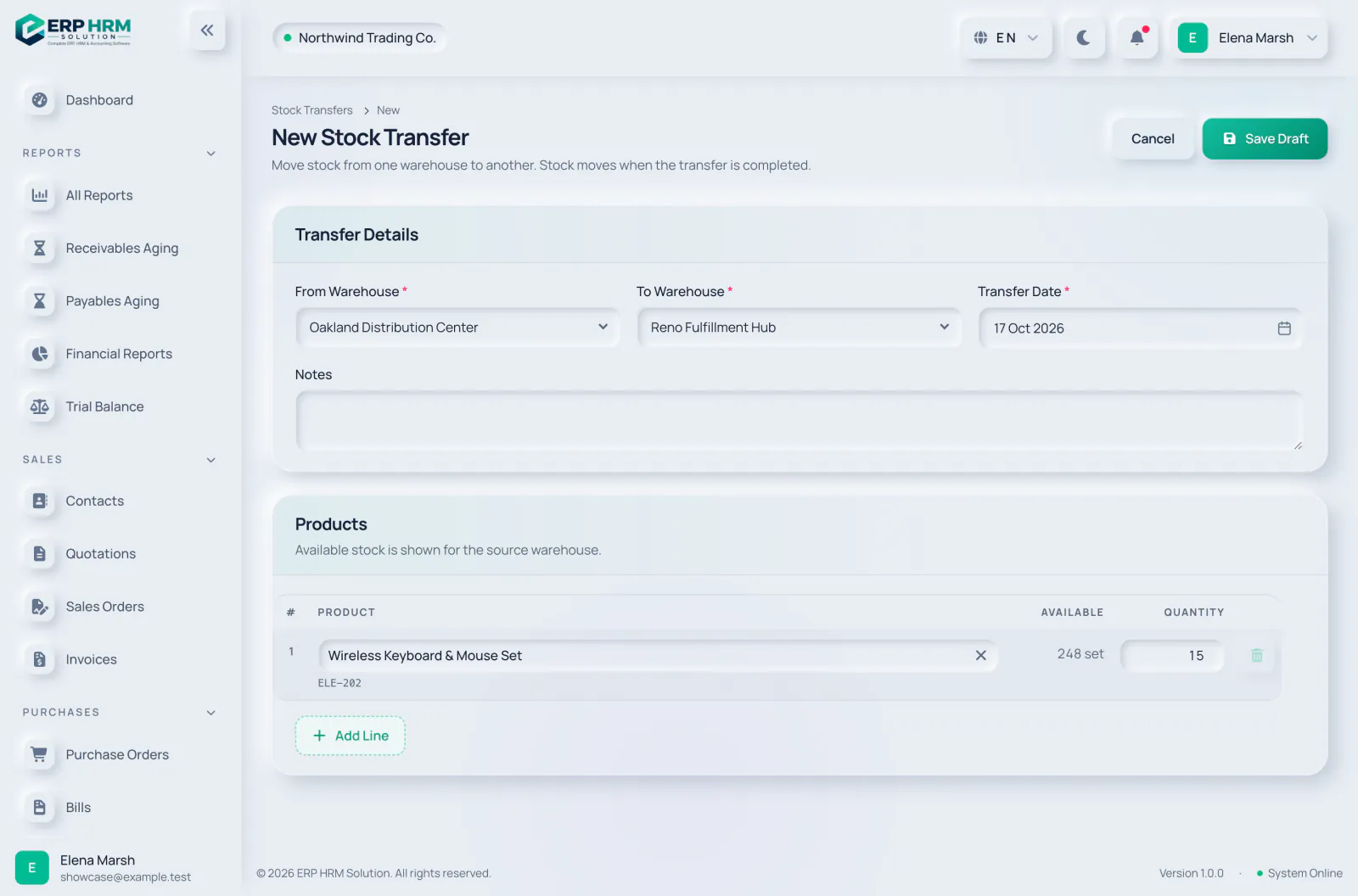
Open Inventory › Transfers and click New Transfer (or Transfer on the Inventory overview).
-
Step 2: Choose the warehouses
Pick the From Warehouse and the To Warehouse; they must be different. Set the Transfer Date and optional Notes.
- 1. From Warehouse
- 2. To Warehouse
-
Step 3: Add products
Choose each product and enter the Quantity. Available shows the stock in the source warehouse. Click Add Line for more products. Services and products that do not track inventory cannot be transferred.
- 1. Available
- 2. Quantity
-
Step 4: Save the draft
Click Save Draft. The transfer opens as Draft.
- 1. Save Draft
-
Step 5: Move it through its steps
On the transfer, click Submit Request, then Approve, then Mark In Transit when the goods leave, and Complete Transfer when they arrive.
What happens at each step
- Draft, Requested, Approved: nothing moves yet.
- In Transit: the quantities are reserved at the source warehouse, so they cannot be delivered or transferred again. Dispatching fails if there is not enough available stock.
- Completed: stock leaves the source and arrives at the destination, valued at the source warehouse’s average cost. Two movements are recorded: Stock Transfer Out and Stock Transfer In.
- Cancelled: use Cancel Transfer under Manage at any step before completion. No stock moves and any reservation is released.
Related guides
Ask about the product
Ask what the software can do, how a task works, or which countries and languages it supports. Answers come from these guides.
Thinking…
The AI assistant is not available right now. Search the guides or talk to our team. Contact support
AI can make mistakes. Check the linked guides.
Still need help?
Our support team reads every message and answers in plain language.
Contact support