Submitted expenses wait for an approver. Approving needs the approve permission and rejecting needs the reject permission; in the standard roles the Accountant and Admin roles have both, while the Manager and Purchase roles do not.
Nobody approves their own expense
Whoever created an expense, and the employee it is filed for, can never approve it — whatever their role. The Approve button is hidden for them, and the system refuses with "You cannot approve your own expense. Another approver must approve it." Another person with approval rights must decide.
-
Step 1: Find submitted expenses
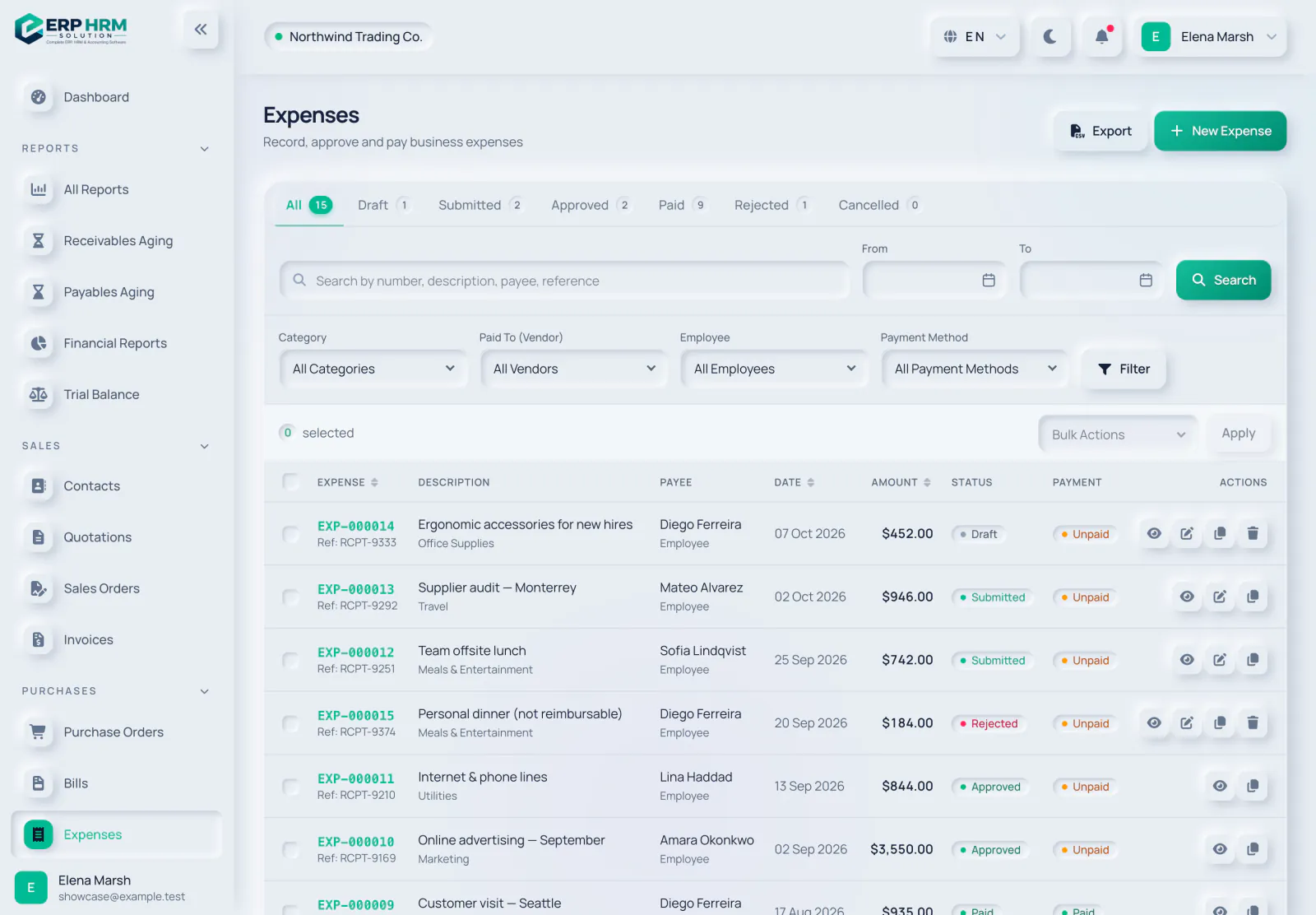
Go to Purchases → Expenses and click the Submitted tab. The number next to each tab is the count in that status.
- 1. Status tabs
-
Step 2: Review the claim
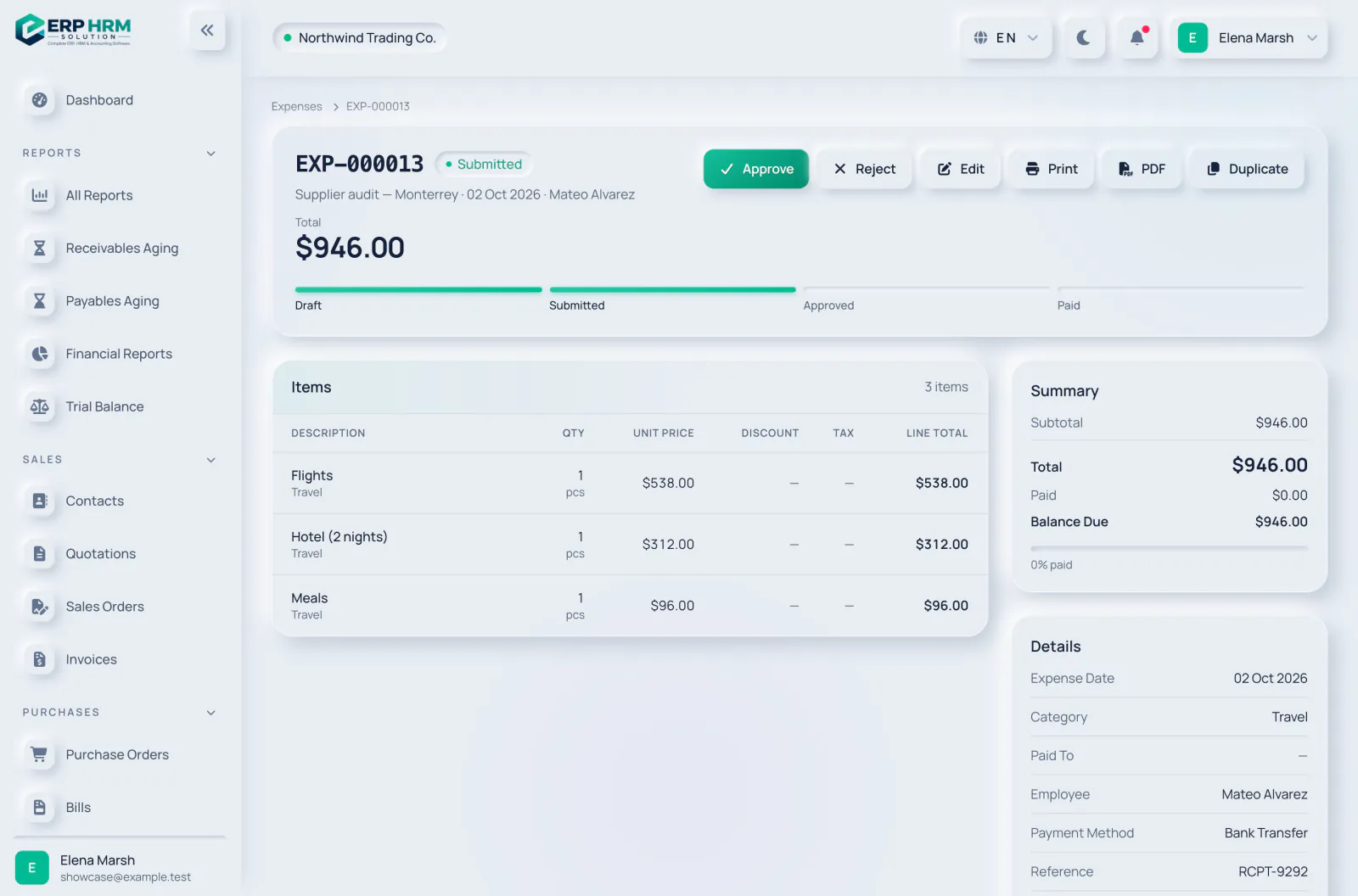
Open the expense. Check the items, the receipts listed under Receipts and the details panel (category, payee, employee and reference).
-
Step 3: Approve
Click Approve and confirm "Approve this expense? It will be posted to accounting." The status becomes Approved and a journal entry is posted.
- 1. Approve
- 2. Submitted
-
Step 4: Or reject
Click Reject and confirm. The status becomes Rejected.
- 1. Reject
What approval posts
Approval debits each line's expense category account (or the Default Expense account when it has none) for the amount before tax, debits Input Tax for any tax and credits Accounts Payable for the total. If the account mapping is incomplete, or the expense date falls in a closed fiscal period, approval is refused and the expense stays Submitted.
After a rejection
A rejected expense shows "This expense was rejected. Return it to draft to correct and resubmit it." Click Return to Draft, correct it with Edit, then click Submit for Approval again. Rejected expenses can never be paid.
Cancelling
Use Cancel Expense in the Manage panel for a Draft, Submitted, or Approved expense on which nothing has been paid yet. Cancelling an approved expense reverses its accounting entry (the reversal is dated today). A cancelled expense can no longer change.
Related guides
Ask about the product
Ask what the software can do, how a task works, or which countries and languages it supports. Answers come from these guides.
Thinking…
The AI assistant is not available right now. Search the guides or talk to our team. Contact support
AI can make mistakes. Check the linked guides.
Still need help?
Our support team reads every message and answers in plain language.
Contact support