Accounting is double-entry: every journal entry has at least two lines and its total debits must equal its total credits. You rarely type entries yourself. When a document reaches a certain point in its workflow, the system posts a journal entry for it automatically, using the accounts chosen in Accounting → Account Mapping.
What gets posted, and when
- Invoice — when you click Issue Invoice: debit Accounts Receivable for the total, credit Sales Revenue for the amount before tax, and credit Output Tax for any tax.
- Bill — when it is marked as received: debit the Default Expense account (or the Goods Received Not Invoiced account for goods already received against the purchase order), debit Input Tax for any tax, and credit Accounts Payable for the total.
- Expense — when it is approved: debit each line's expense category account (or the Default Expense account when the category has none) for the amount before tax, debit Input Tax for any tax, and credit Accounts Payable for the total.
- Payment (money out) — when posted: debit Accounts Payable and credit the bank or cash account.
- Receipt (money in) — when posted: debit the bank or cash account and credit Accounts Receivable.
- Stock movements: goods receipts (Inventory against Goods Received Not Invoiced), goods issues (Cost of Goods Sold against Inventory), stock adjustments (Inventory against Inventory Adjustments), transfers and opening stock (Inventory against Retained Earnings).
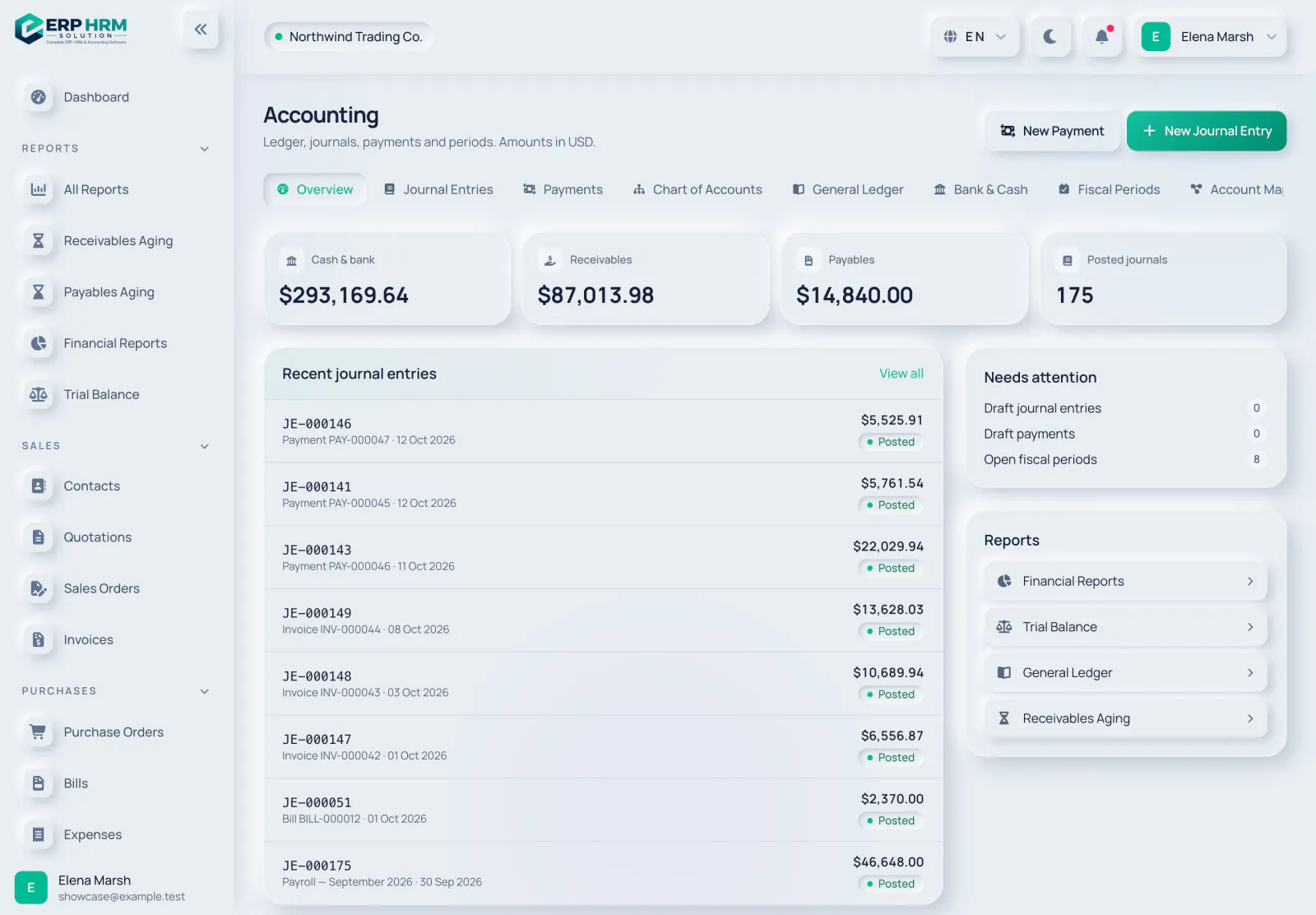
Posting status of a journal entry
- Draft — saved but not in the ledger. Drafts do not affect any balance or report.
- Posted — in the ledger. Posted entries can never be edited.
- Reversed — a posted entry that has been cancelled out by an opposite entry. Both entries stay in the books.
Undoing a posted document
To undo an entry created by a document, cancel or void the document itself (for example Cancel Expense on an approved, unpaid expense, or Void Payment on a posted payment). The system then posts a reversal entry, dated today, and marks the original entry as Reversed. The Reverse Entry button is only offered on manual entries; on a document entry the system answers "This entry was created by a document. Void or cancel the document instead of reversing the entry."
- 1. Journal Entries
- 2. Account Mapping
- 3. Entry and its source
- 4. Needs attention
Related guides
Ask about the product
Ask what the software can do, how a task works, or which countries and languages it supports. Answers come from these guides.
Thinking…
The AI assistant is not available right now. Search the guides or talk to our team. Contact support
AI can make mistakes. Check the linked guides.
Still need help?
Our support team reads every message and answers in plain language.
Contact support