Open invoices are listed at the top of Subscription & Billing, each with a Pay button. Every invoice is also in Billing history. Invoices are due seven days after they are issued.
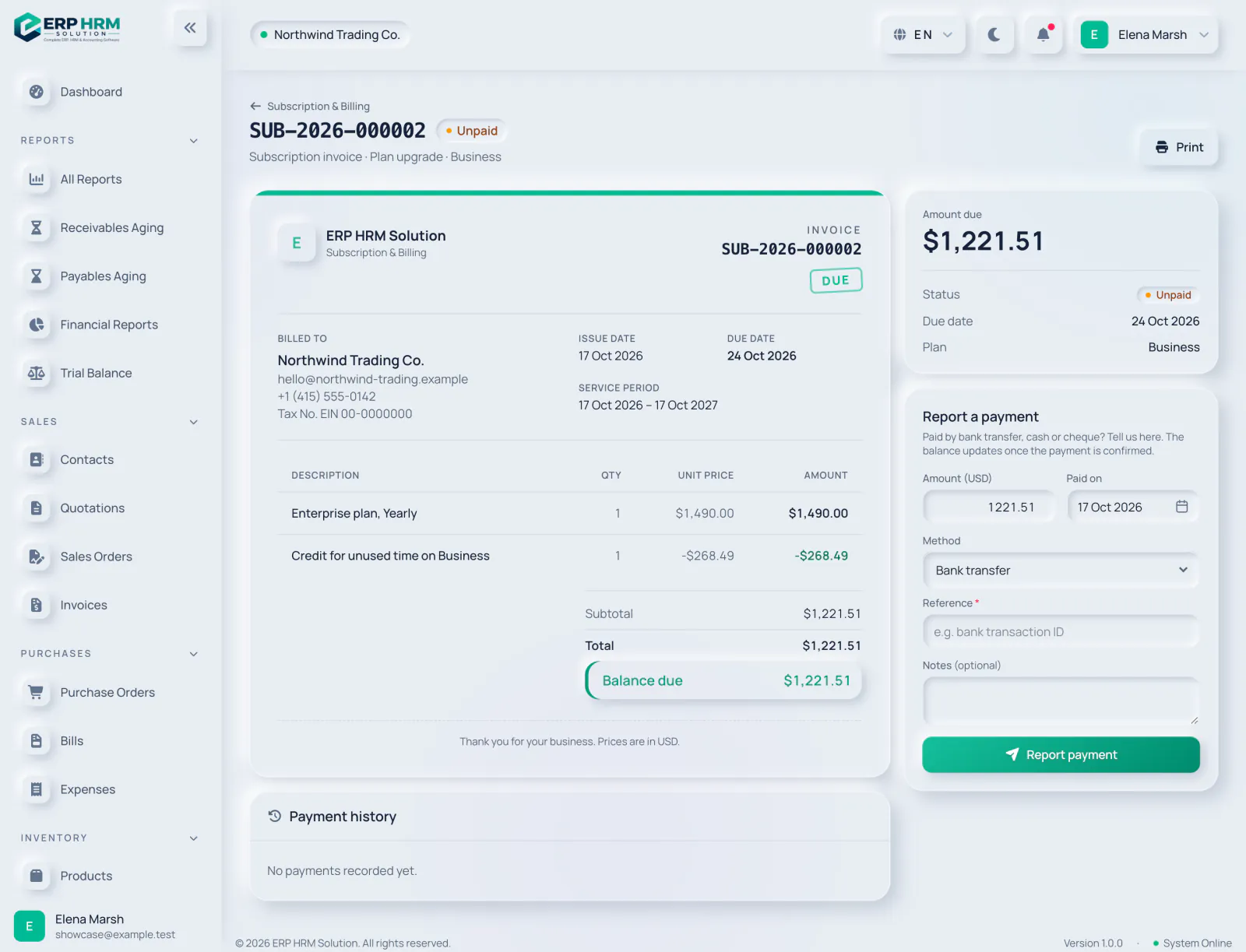
- 1. Invoice status
- 2. Credit for unused time
- 3. Amount due
- 4. Print or save as PDF
Pay online
When online payment is available for your currency, the invoice shows a Pay online section. Card payments in US dollars go through Dodo Payments; companies in India pay in Indian rupees through Cashfree (UPI, cards or net banking). Select the pay button to open the secure payment page; card and bank details are entered there and never reach us. When you come back, the invoice shows whether the payment was received, is still being processed or failed.
Pay by bank transfer
When the platform accepts bank transfers, an unpaid invoice shows a Pay by bank transfer box with the beneficiary, bank, branch, account number, IFSC and, where set, the SWIFT/BIC code and IBAN. Use the Copy buttons to copy the account number, IFSC and payment reference without typing mistakes. The same details are printed on the invoice and included in the invoice e-mail.
Report a bank transfer, cash or cheque
-
Step 1: Open the invoice
Find the section Report a payment (or Paid another way? when online payment is offered). After a bank transfer, report it here so it can be confirmed.
-
Step 2: Fill in the payment
Check the Amount (it starts at the balance and cannot be more), the Paid on date and the Method: Bank transfer, Cash, Cheque, Card terminal or Other. Enter the Reference, such as the bank transaction ID; it is required.
- 1. Method
- 2. Reference
- 3. Report payment
-
Step 3: Send it
Select Report payment. The payment is listed under Payment history as Pending verification.
Once the payment is confirmed on our side, the invoice becomes Paid (or Partially paid) and you get a Payment received notification. If it cannot be matched, you are told why with Payment not confirmed.
Related guides
Ask about the product
Ask what the software can do, how a task works, or which countries and languages it supports. Answers come from these guides.
Thinking…
The AI assistant is not available right now. Search the guides or talk to our team. Contact support
AI can make mistakes. Check the linked guides.
Still need help?
Our support team reads every message and answers in plain language.
Contact support